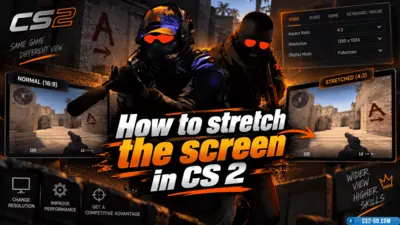
How to stretch the screen in CS 2 (CS 2)
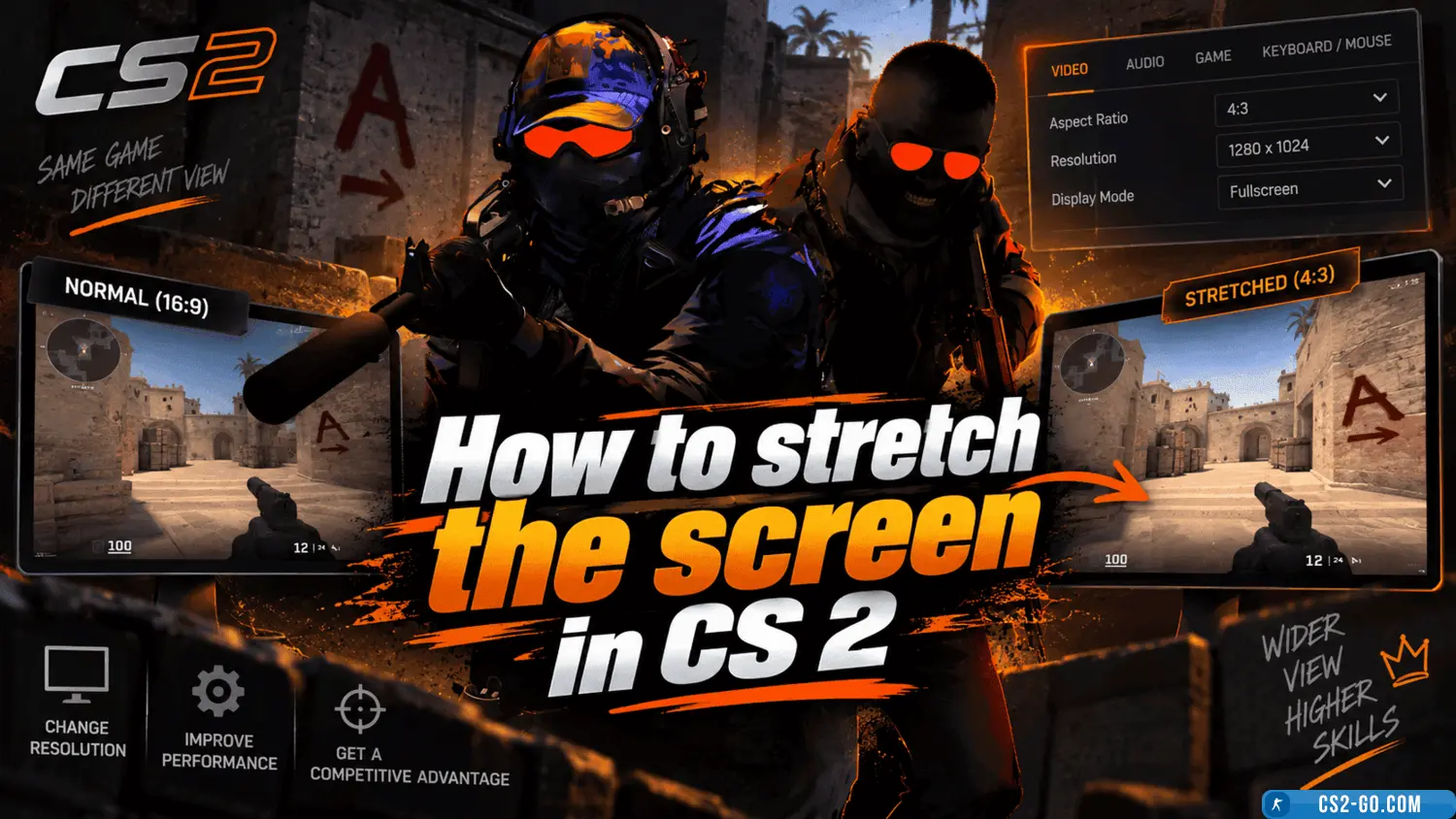
Screen stretching in «CS 2» (Counter-Strike 2) is a popular setting that improves in-game visibility. This adjustment helps expand the field of view, which can provide an advantage, especially when playing with wider screen proportions. This guide will show you how to stretch the screen in «CS 2» to enhance comfort and gameplay efficiency.
1. Using Console Commands to Stretch the Screen
You can stretch the screen in «CS 2» by changing the resolution and using console commands. To do this, use the console and set the desired parameters.
- How to enable the console:
- Go to the game settings.
- In the «Game Settings» section, enable «Enable Developer Console».
- Assign a key to open the console, for example, ~ (tilde).
2. Changing Screen Resolution
To stretch the screen, you can change the game resolution to make it wider and stretch the image. Use the following console commands:
-
Command to change resolution: Enter in the console:
mat_setvideomode 1920 1080 1This sets the resolution to 1920x1080 with a 16:9 aspect ratio. You can experiment with other resolutions to achieve the desired effect. For example, 1280x1024 with a 4:3 aspect ratio also works for stretching the image.
-
Other resolution options:
- 1440x1080 — 4:3 (widescreen, often used by professional players).
- 1280x960 — 4:3 (more standard stretching).
- 1920x1080 — 16:9 (standard widescreen resolution).
3. Using Commands to Stretch the Game
You can use commands for additional scaling and screen stretching:
- Stretch command:
Enter this command in the game's launch options. It will adjust the aspect ratio to stretch the image to fill the entire screen.-stretchaspect
4. Using Custom Configurations
Many players prefer custom configurations for screen setup. These configs can contain pre-set parameters to stretch the image. To use a config, download one online or create your own.
- Find or create an
autoexec.cfgfile in the game folder. - Open the file and add the necessary commands to stretch the screen, for example:
This sets the resolution to 1440x1080 and stretches the screen.mat_setvideomode 1440 1080 1
5. Stretching the Screen via Graphics Settings
You can also adjust stretching through the in-game graphics settings:
- Go to «Settings» — «Video».
- Set a resolution suitable for stretching. Usually, this is a 4:3 resolution, such as 1280x960 or 1440x1080.
- Make sure the «Stretch to full screen» option is enabled.
6. Benefits of Screen Stretching in CS 2
- Wider view: stretching the screen allows better visibility of the sides, useful for spotting enemies.
- Improved aiming: a larger screen area makes aiming easier, as the target occupies more space.
Screen stretching in «CS 2» is a useful setting for players who want to improve in-game visibility. Experiment with resolutions and settings to find the optimal setup for you.