KNOWLEDGE BASE / ARTICLE
How to bind keys in CS 2
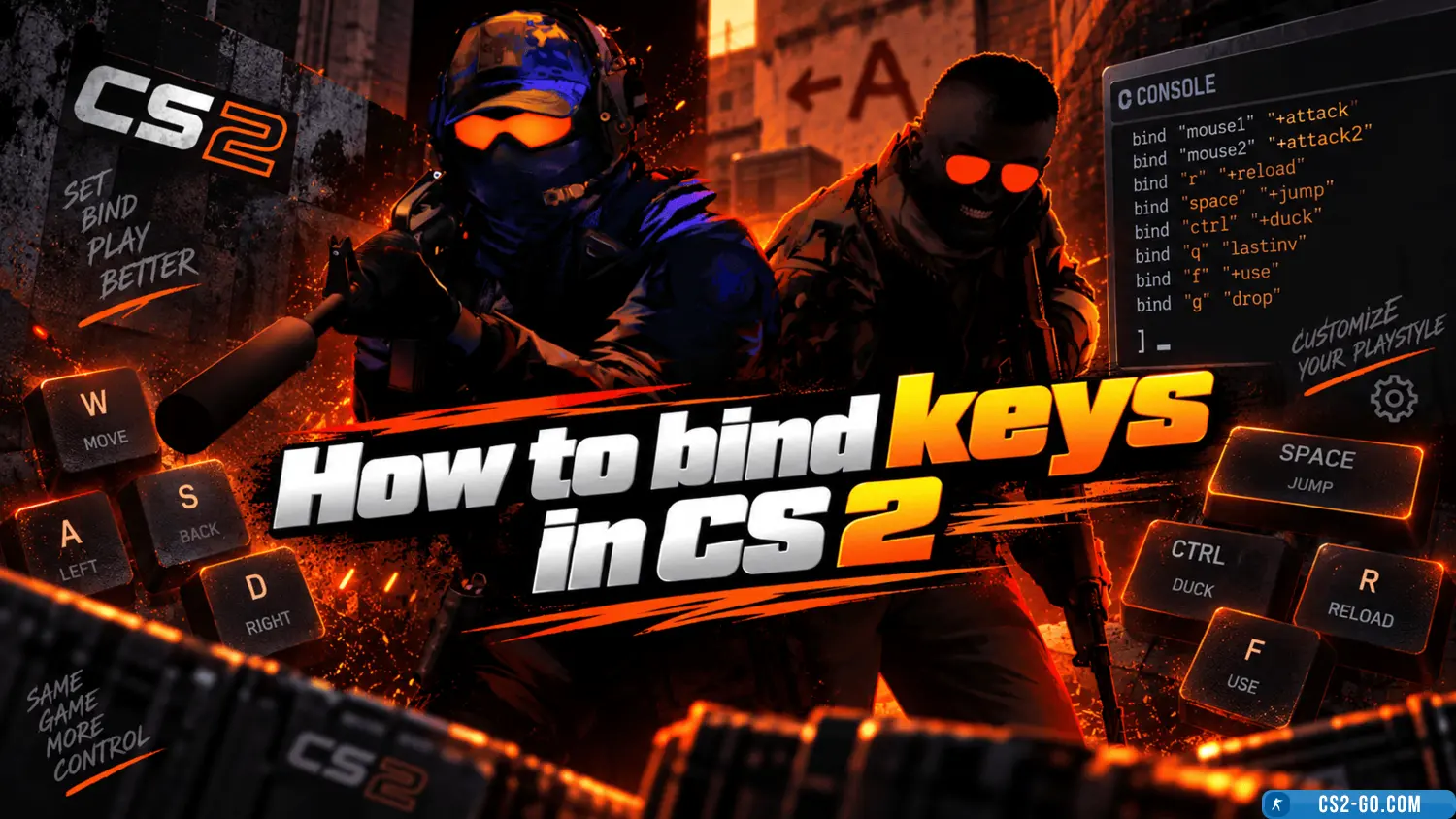
Video review of How to bind keys in CS 2
 |
How to bind keys in CS 2 has been checked for viruses by our site administration and is completely safe for installation and use on your PC. |
The complete history of CS 1.6 — creators of Counter-Strike


The history of the creation of “Counter-Strike” and who created it.
Bind jump to the mouse wheel in CS2
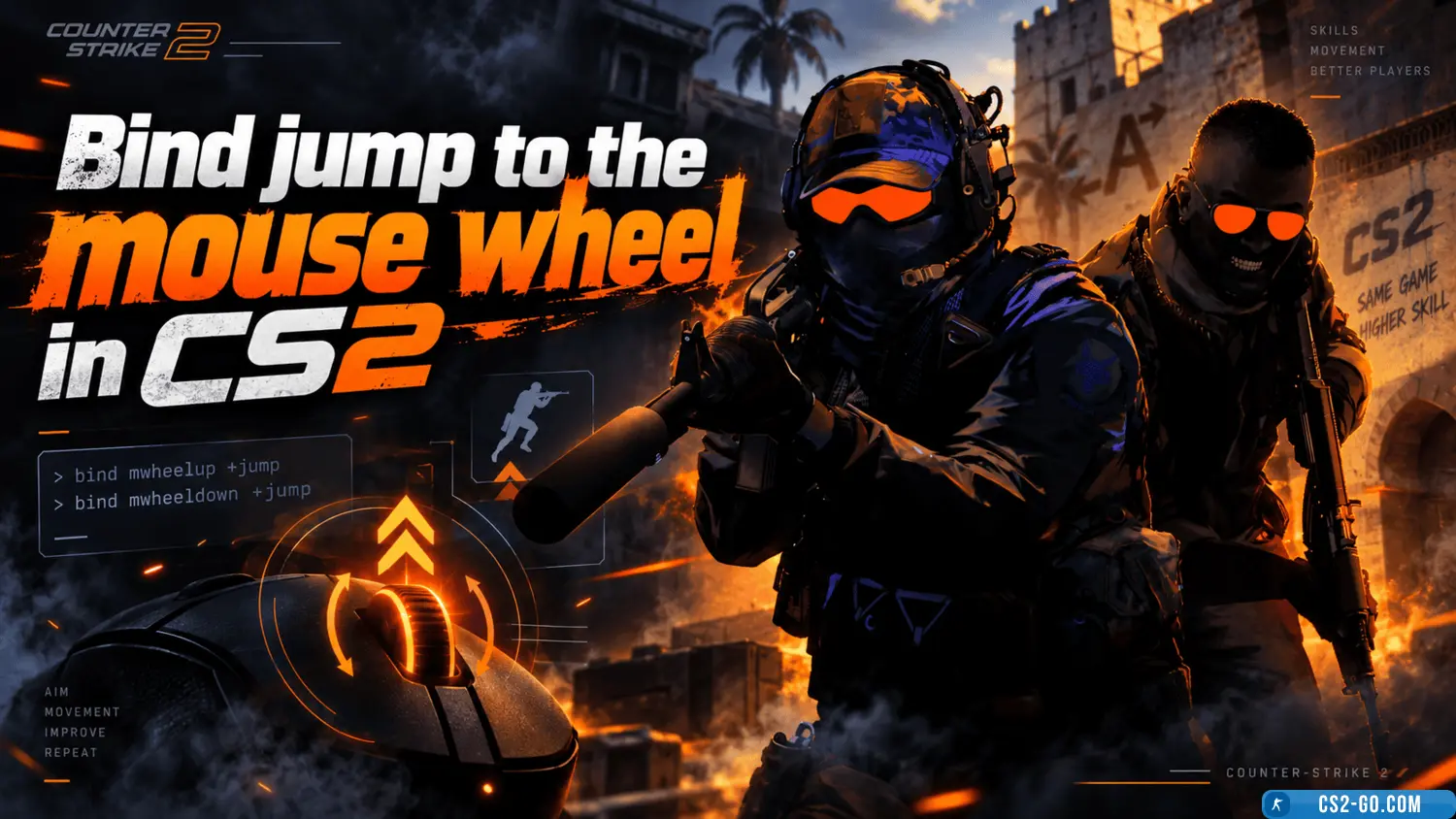
Using the mouse wheel for jumping significantly simplifies gameplay in Counter-Strike 2. Here's how to set up this bind.
How to play Faceit in CS 2 (CS 2)
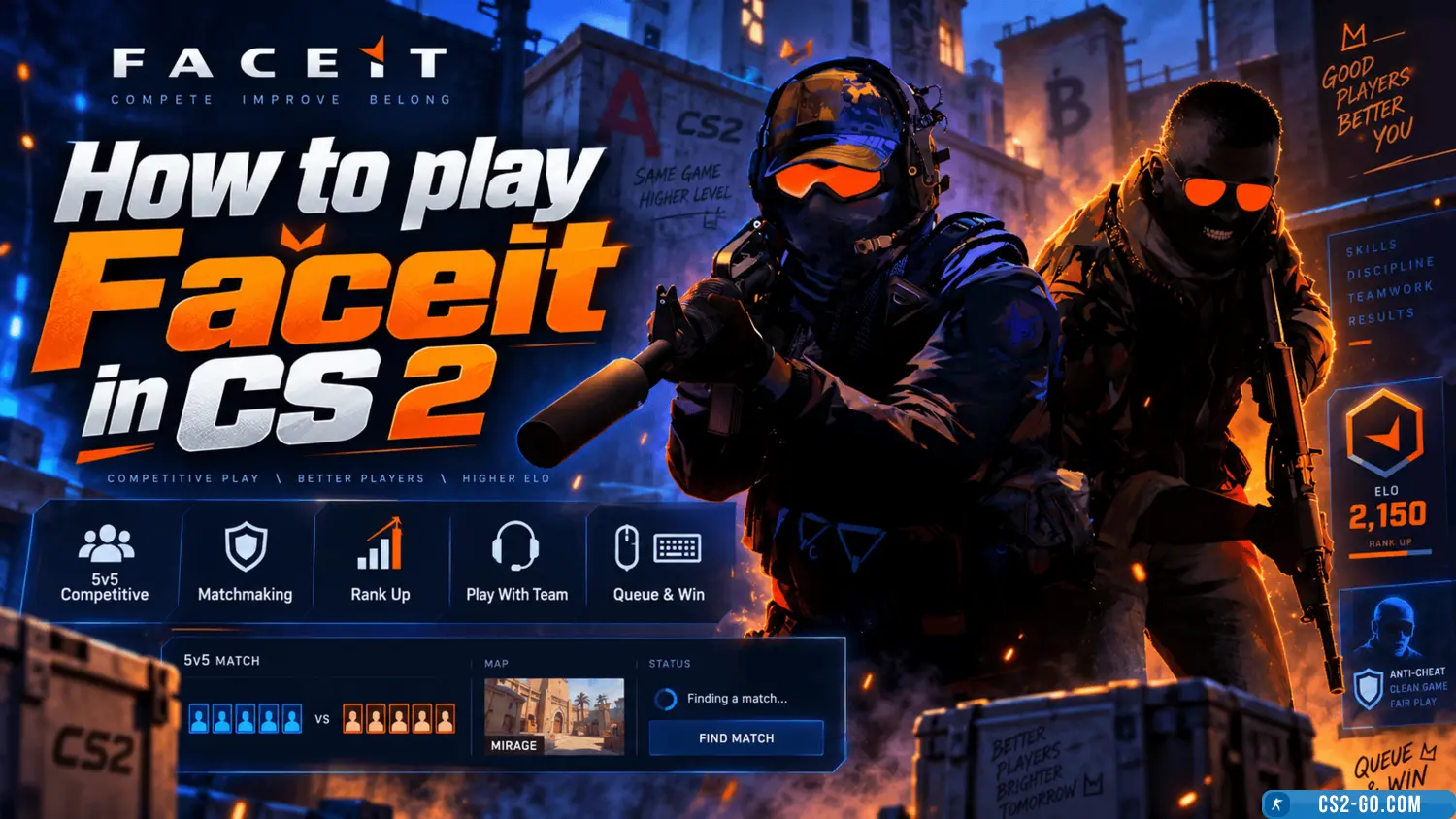
To play CS 2 on Faceit, register on the website, link your Steam account, install the anti-cheat, and select competitive...
How to stretch the screen in CS 2 (CS 2)
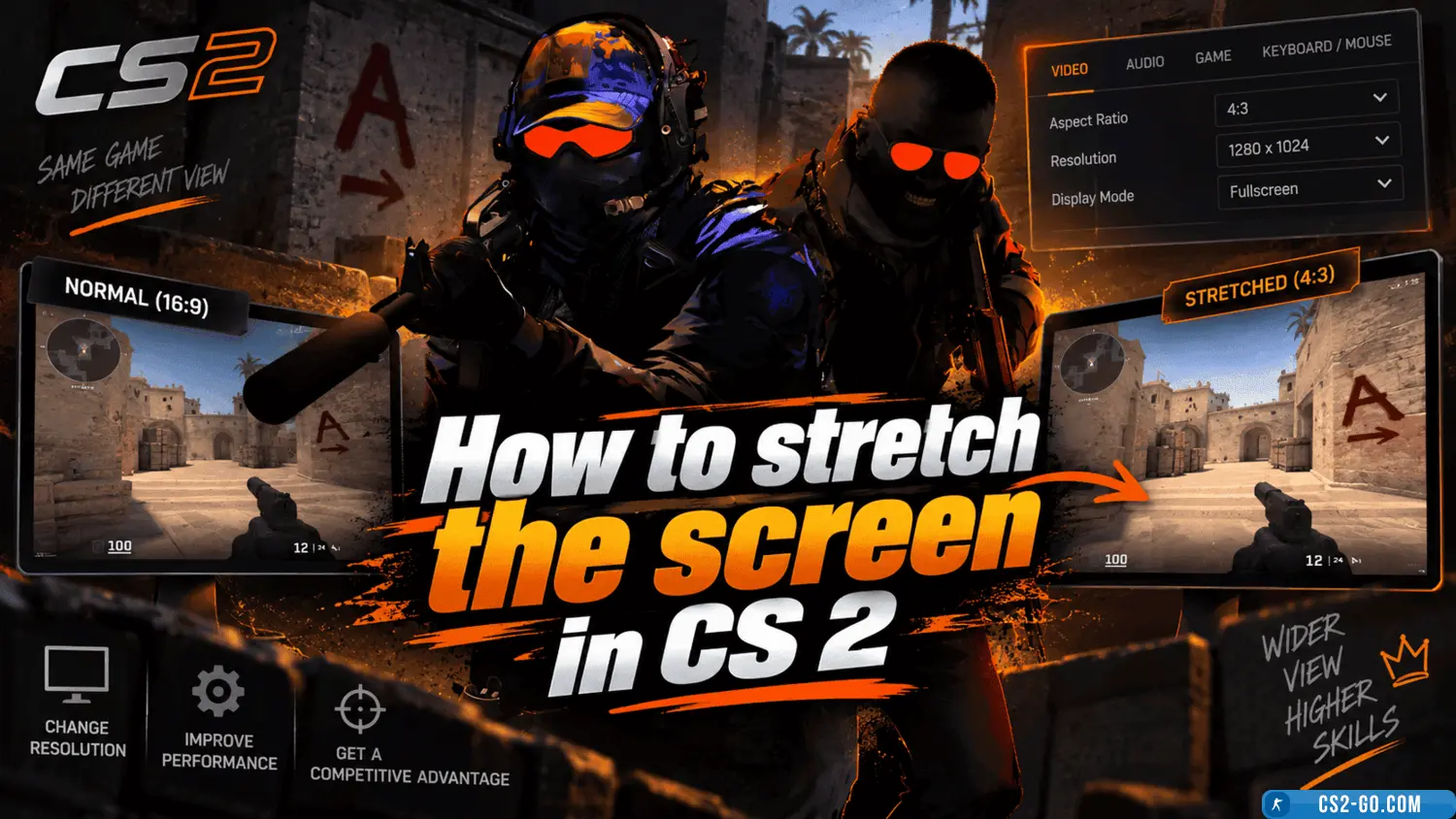
Screen stretching in *CS 2* (Counter-Strike 2) is a popular setting that improves in-game visibility. This adjustment he...
How to bind noclip in CS 2 (CS 2)
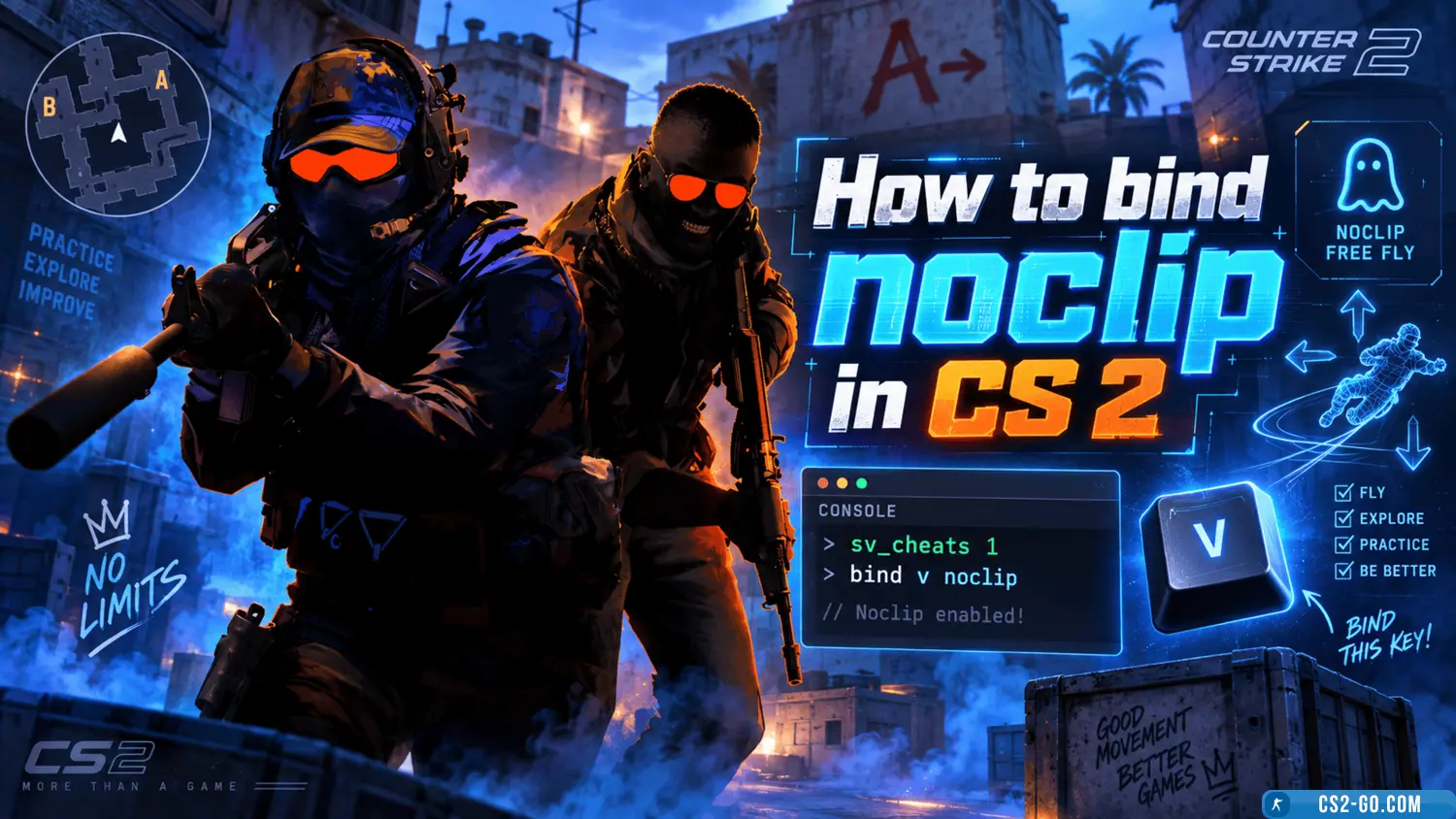
Noclip is a special command in CS 2 (Counter-Strike 2) that allows you to move around the map and pass through walls and...