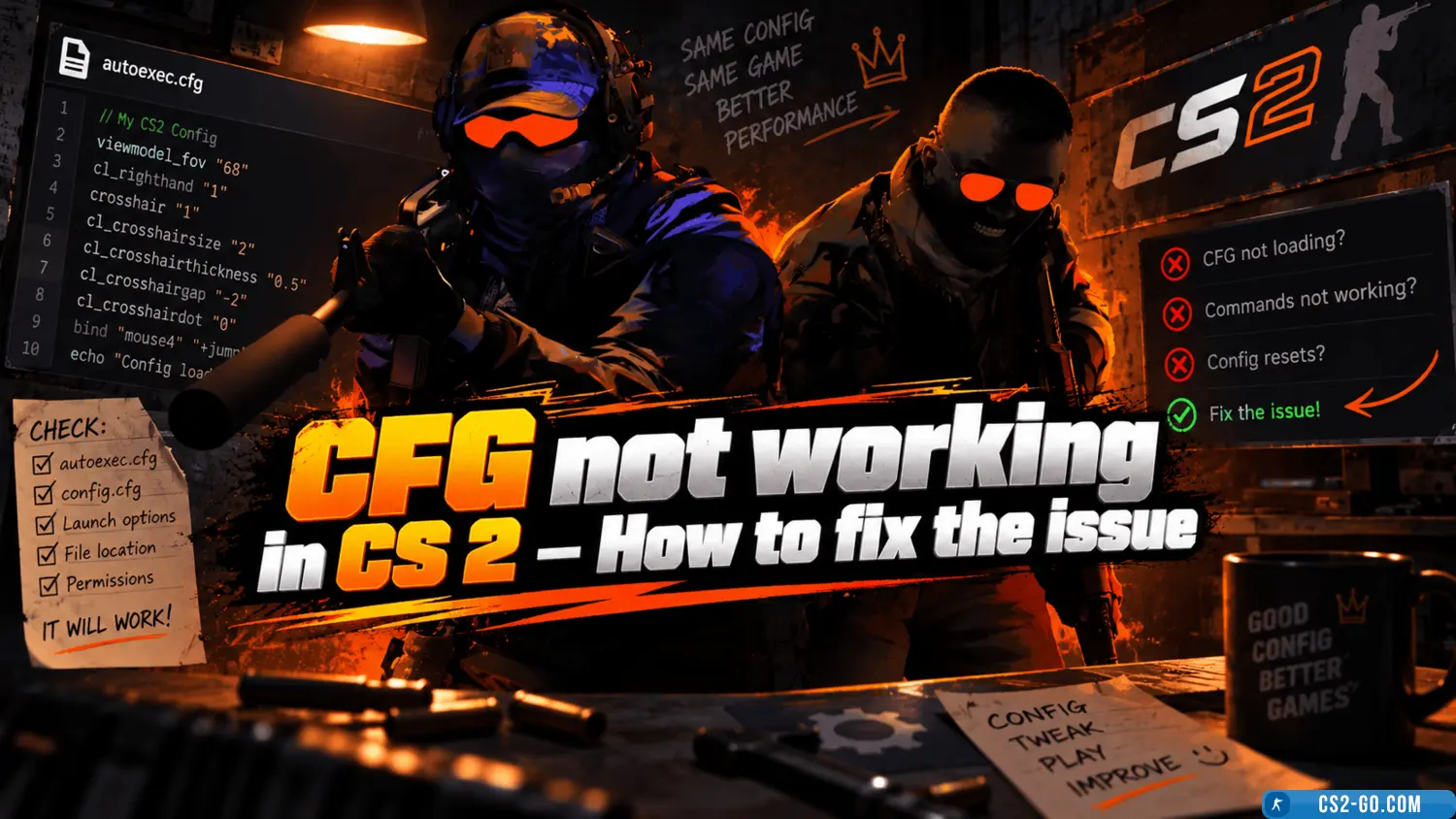
CFG not working in CS 2 (CS 2) – How to fix the issue
If your config in CS 2 isn’t working, it may be due to setup errors, incorrect file placement, or missing launch parameters. Here’s a step-by-step guide to fix the issue.
Check the File Path
The autoexec.cfg file should be located in:
Steam\steamapps\common\Counter-Strike 2\csgo\cfg\.
Make sure the file is saved with the .cfg extension, not .txt. To verify, enable file extensions in Windows Explorer.
Add a Launch Parameter
Sometimes the config doesn’t load automatically. To fix this:
- Open Steam and find CS 2 in your library.
- Right-click the game and select “Properties.”
- In the “Launch Options” field, add:
+exec autoexec.cfg
Check the Config Content
Syntax errors can cause issues. Open autoexec.cfg and ensure commands are correct. For example, to set the crosshair size:
cl_crosshairsize 3
Make sure there are no extra spaces or invalid characters in the commands.
Enable the Developer Console
To verify that the config commands work:
- Go to the game settings.
- Enable “Developer Console.”
- Press
~in-game and enter:exec autoexec.cfg
If an error appears, check the file path and content again.
Additional Checks
- Ensure
sv_cheatsis enabled if the config contains training commands. - Check file permissions. The file should not be read-only.
- Restart the game after making changes.
If the config still doesn’t work after all steps, try creating a new autoexec.cfg file and re-enter your settings. This often resolves hidden errors.