How to make a console in CS 1.6 (CS 1.6)
  • 👨‍🦱 Добавил: admin 📆 16.01.2025 ⏰ 17:04


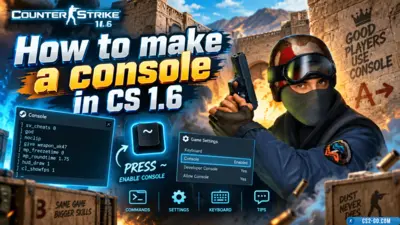
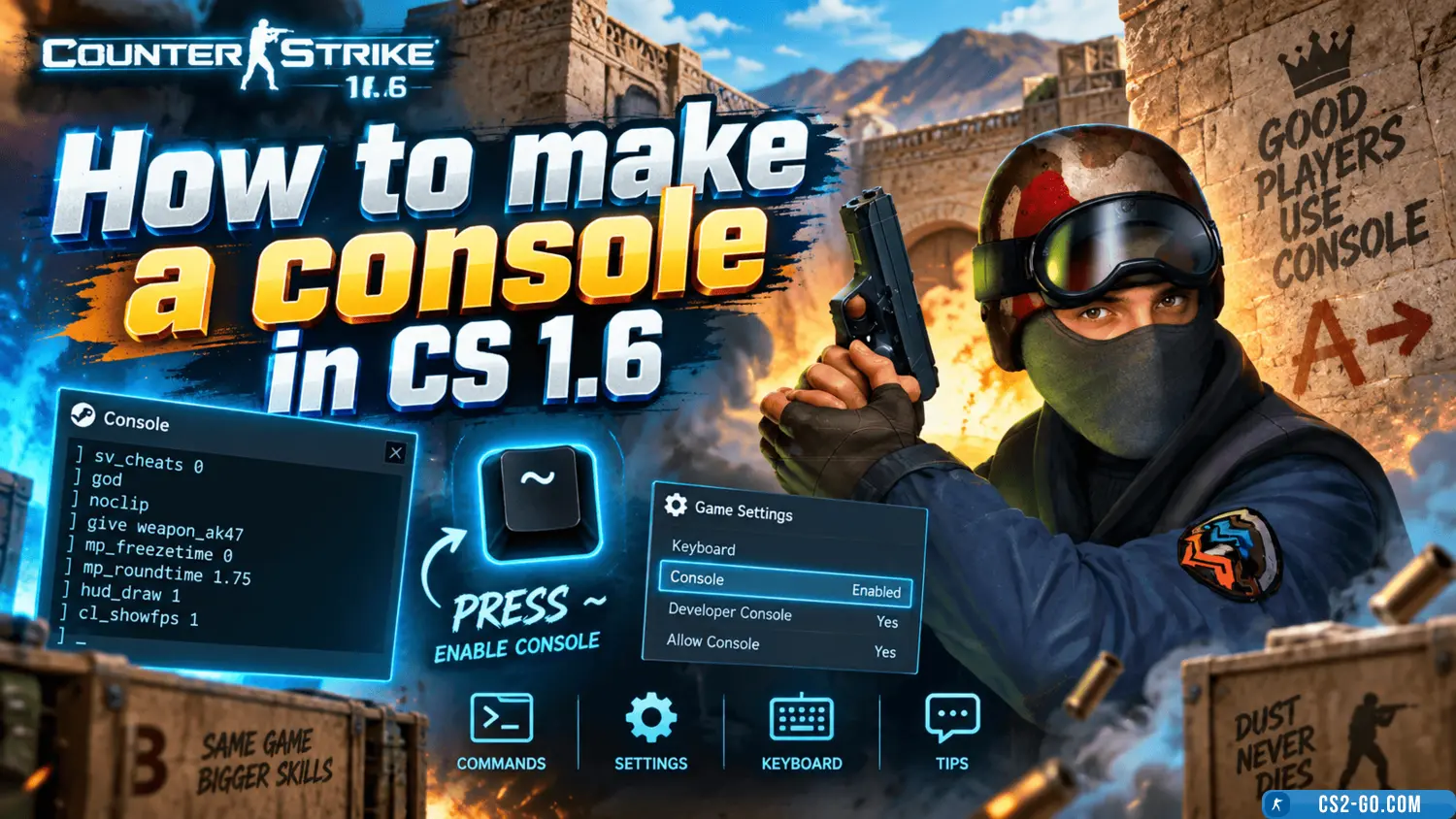
To open the console in CS 1.6, you first need to activate it in the game settings:

  1. Open CS 1.6.
  2. Go to the Options menu.
  3. Select the Keyboard tab.
  4. Click the Advanced button.
  5. In the window that appears, enable the Enable Developer Console option.
  6. Click OK to save the changes.

Now the console will be available in the game.


2. Opening the Console

After activating the console, you can open it by pressing the ~ (tilde) key, which is usually located under the Esc key on the keyboard.

If for some reason the console does not open with this key, you can set another key:

  1. Go to the OptionsKeyboard menu.
  2. Click the Edit keys button.
  3. Change the key for opening the console.

3. Using the Console

After opening the console, you can enter various commands. Here are some examples:

  • Game setting commands:

    • cl_showfps 1 — shows the frames per second.
    • sv_cheats 1 — enables cheat mode (for servers with admin rights).
    • net_graph 1 — displays network information, including latency and packet loss.
  • Sound setting commands:

    • volume — allows you to change the game volume.
    • snd_musicvolume — changes the music volume in the game.
  • Controls modification commands:

    • bind — used to assign keys.
    • sensitivity — sets mouse sensitivity.

4. Using the Console for Server Administration

If you manage your own server, the console is the main tool for administration:

  • Adding bots:

    • bot_add — adds one bot.
    • bot_kick — removes all bots.
  • Running the server:

    • map [map_name] — loads a specific map.
    • mp_timelimit [time] — sets the time limit for the game.

5. Useful Tips

  • Console as a debugging tool: you can check FPS, latency, or connection issues through the console.
  • Using configuration files: you can create a configuration file (for example, autoexec.cfg) to save frequently used commands.

Now you know how to activate and use the console in CS 1.6 for game settings, server administration, and other useful functions.

Download CS 1.6


Категория: Статьи по игре CS 1.6
    How to remove hand and screen shake in CS 1.6 (CS1.6)
    How to remove hand and screen shake in CS 1.6 (CS1.6)
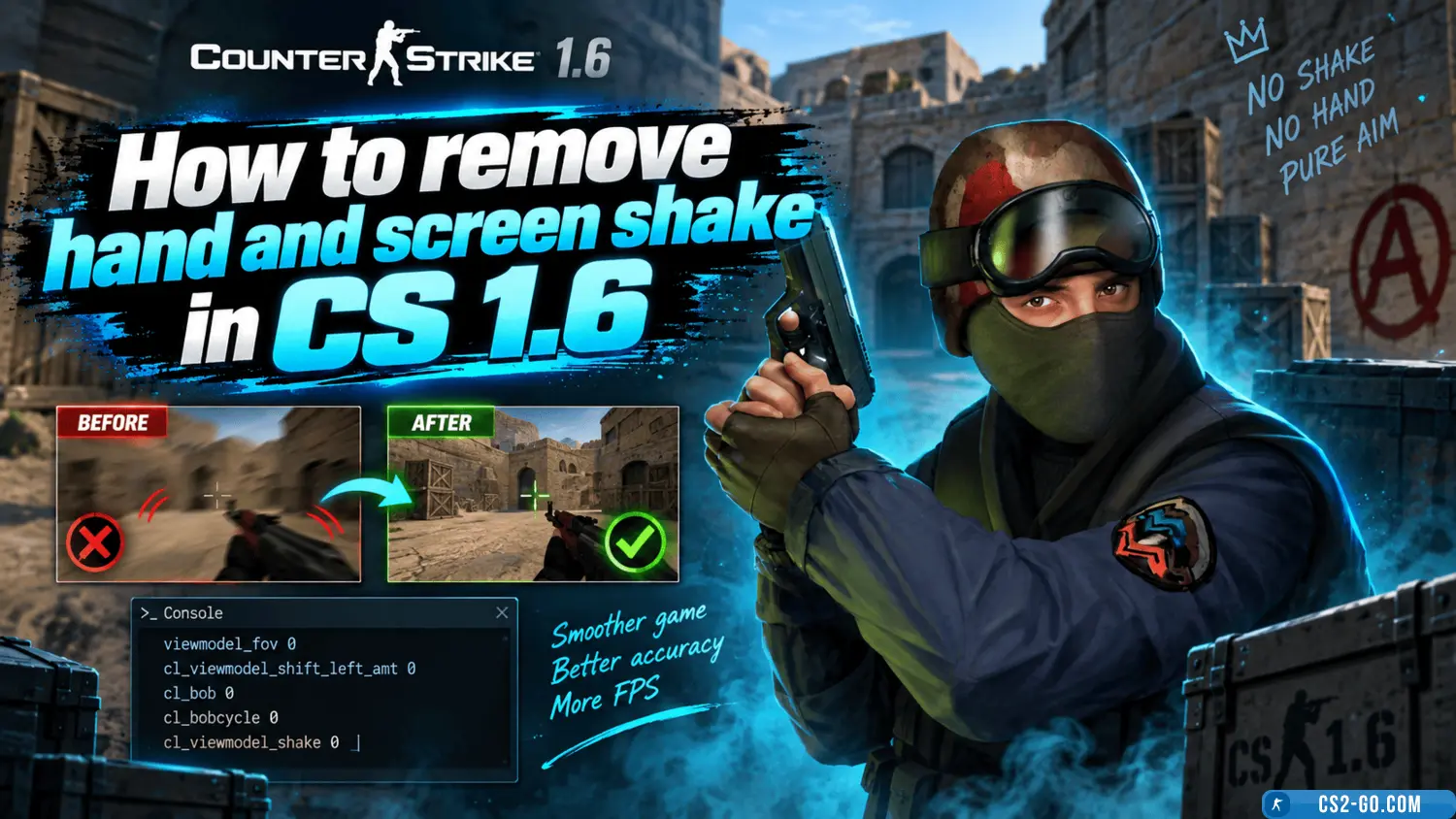
    To remove hand and screen shake in CS 1.6, use the following commands: `cl_bob 0` — disables hand animation, `cl_bobcycle 0.98` — reduces screen bobbing, `cl_damage 0` — disables screen shake when taking damage.

    How to install weapon and C4 models on a CS 1.6 server
    How to install weapon and C4 models on a CS 1.6 server
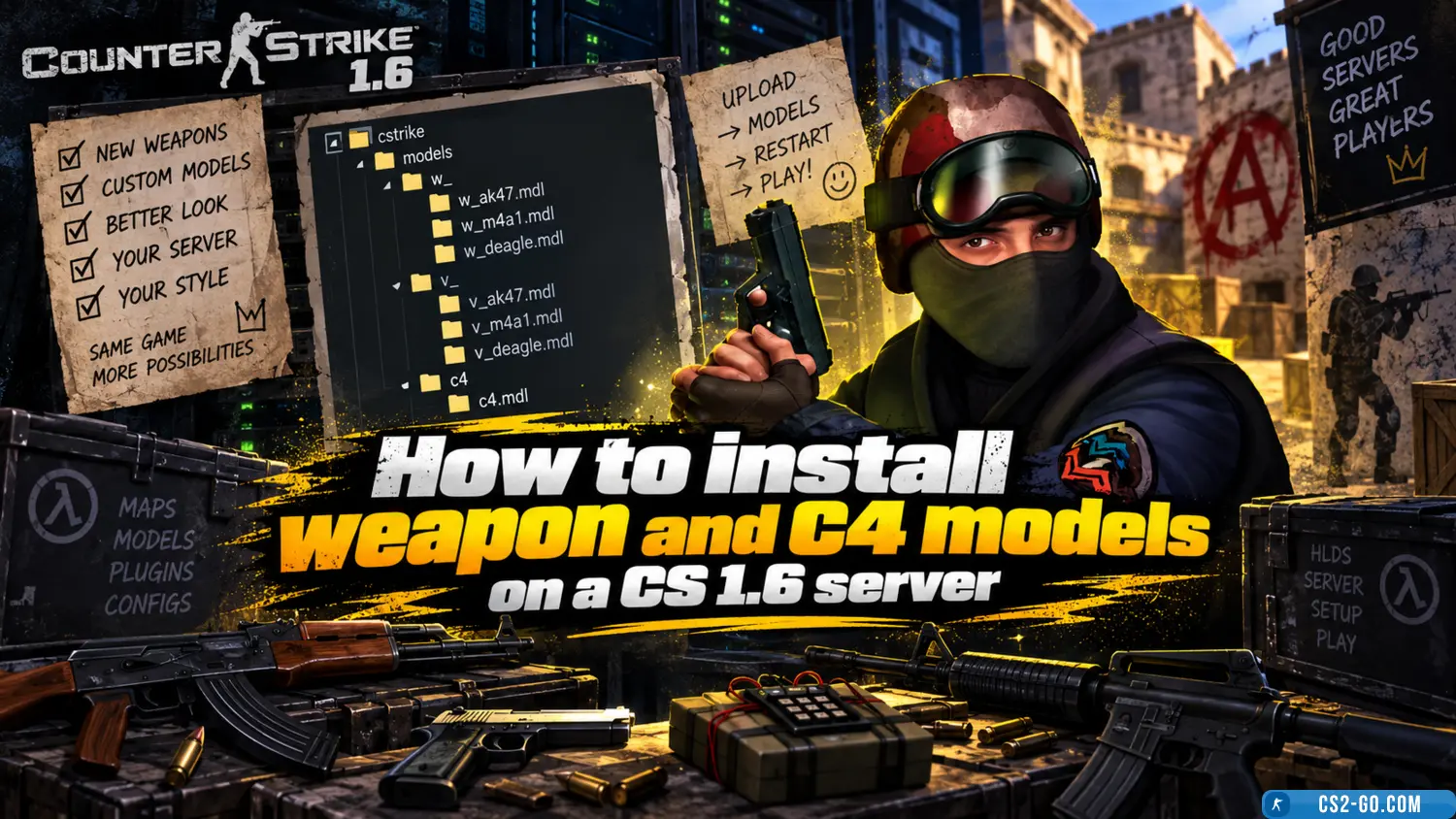
    In this manual, we will look at how to install weapon models for all players, as well as how to set up weapon skins for admins and VIPs. You will be able to customize all skins for yourself. Weapon skin installation is done using various plugins – all of them are availa...

    How to install a map on a CS 1.6 server
    How to install a map on a CS 1.6 server
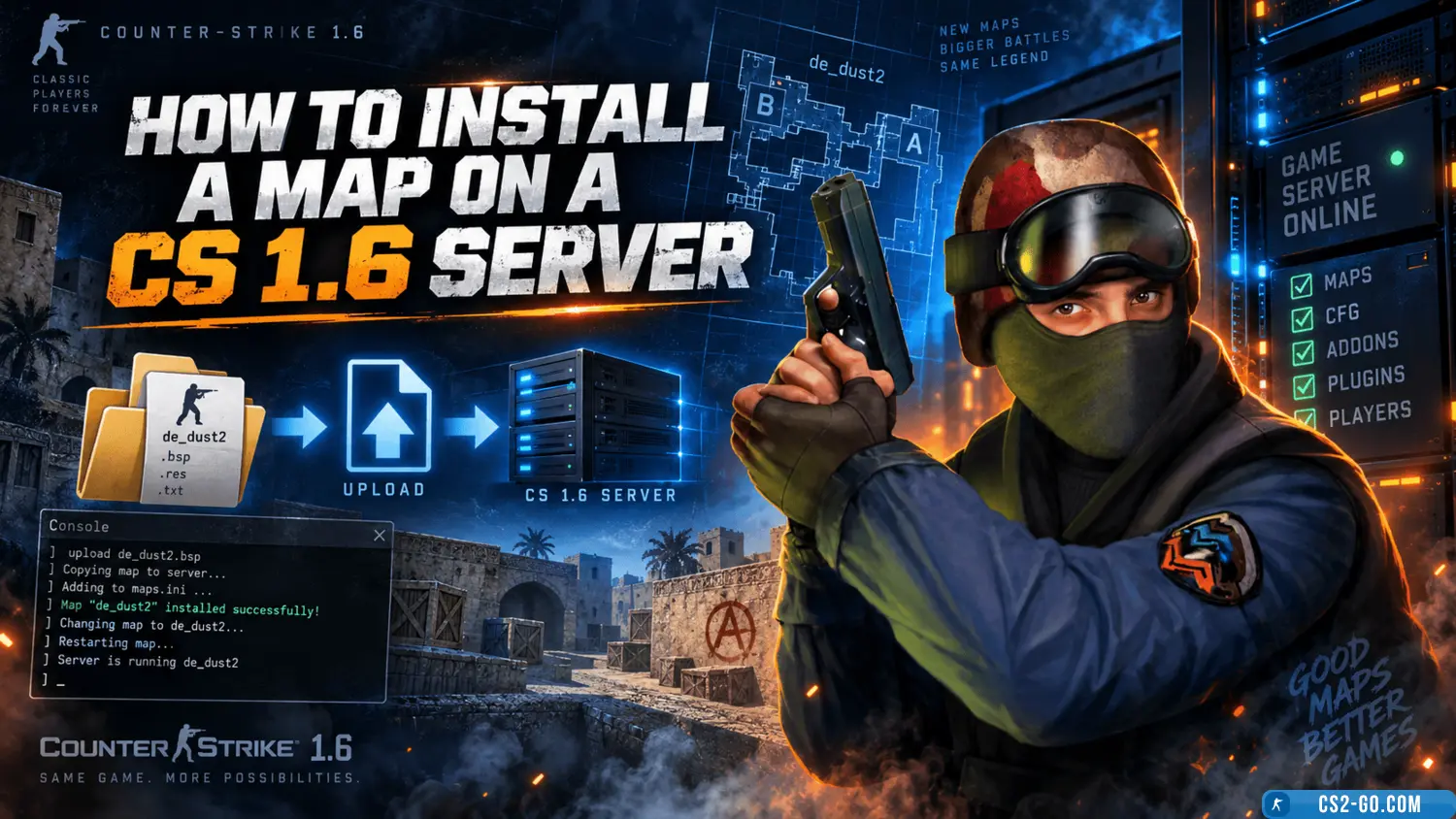
    In this article, we will take a detailed look at how to correctly install a map on a CS 1.6 game server. We will go over all file formats and which folders they should be placed in, as well as how to display the map list in AMX Mod Menu and organize the map cycle on the...

    System requirements for CS 1.6
    System requirements for CS 1.6
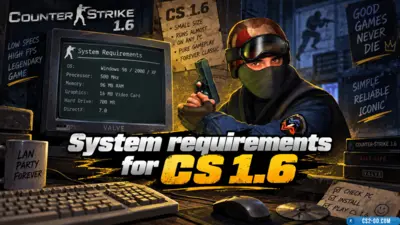
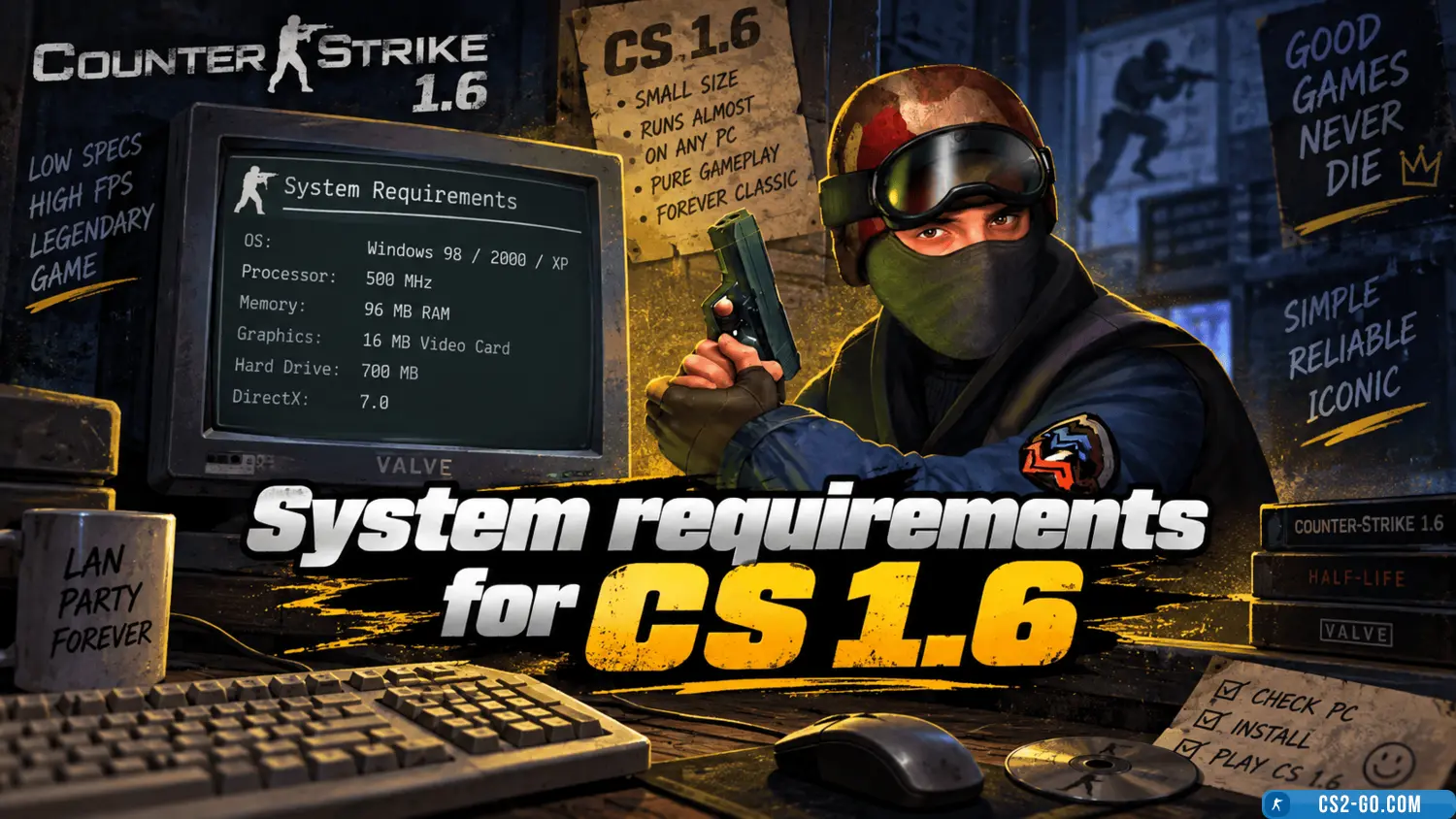
    This article provides a description of the system requirements for Counter-Strike 1.6.

    All mods in CS 1.6
    All mods in CS 1.6
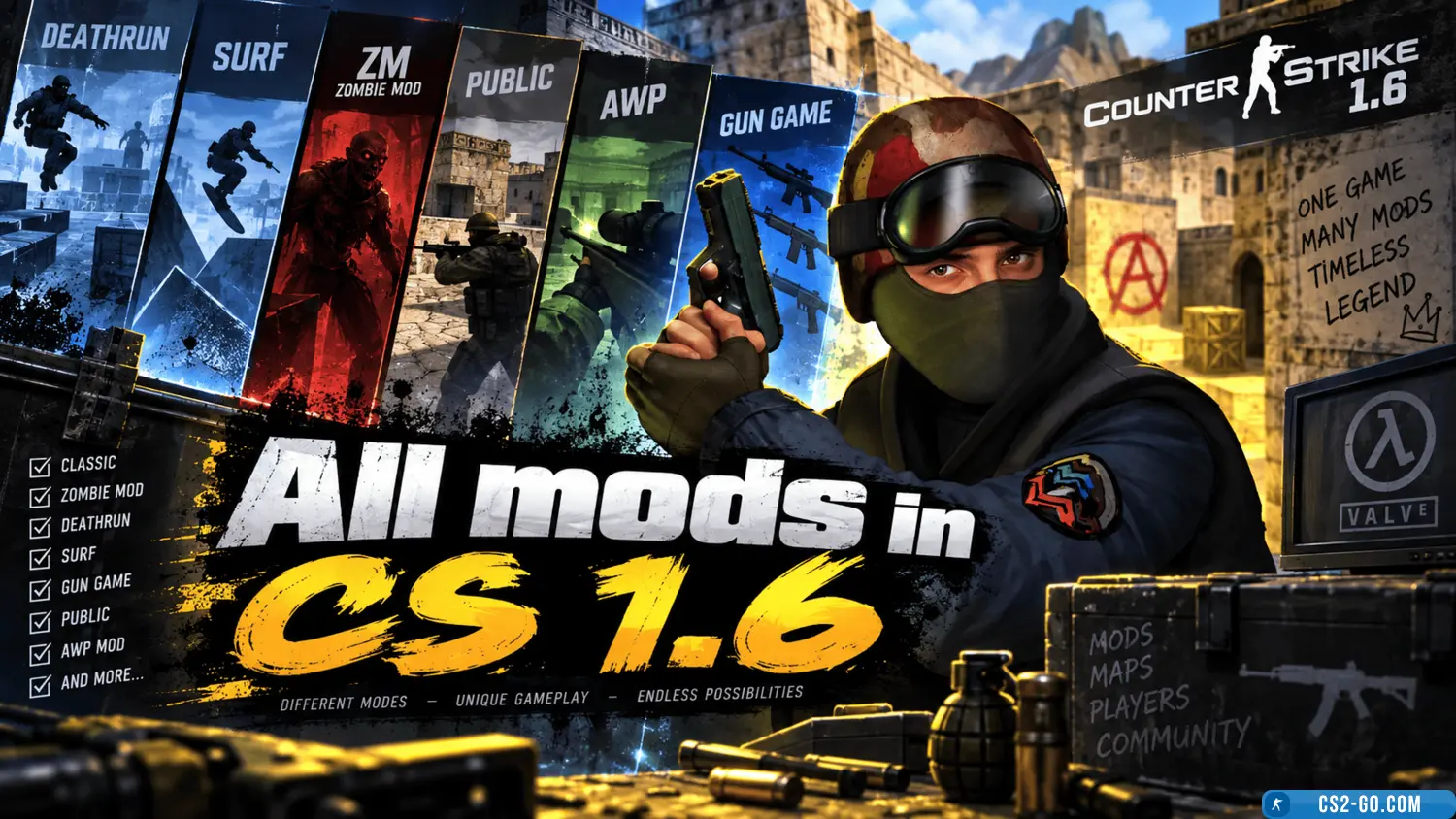
    A list and description of all Counter-Strike 1.6 mods.

    The complete history of CS 1.6 — creators of Counter-Strike
    The complete history of CS 1.6 — creators of Counter-Strike
    The history of the creation of “Counter-Strike” and who created it.

    Counter-Strike 1.6: a classic that remains relevant — game description
    Counter-Strike 1.6: a classic that remains relevant — game description
    This is a cult classic game that was released back in 2000. Despite its age, it is still very popular among gamers.