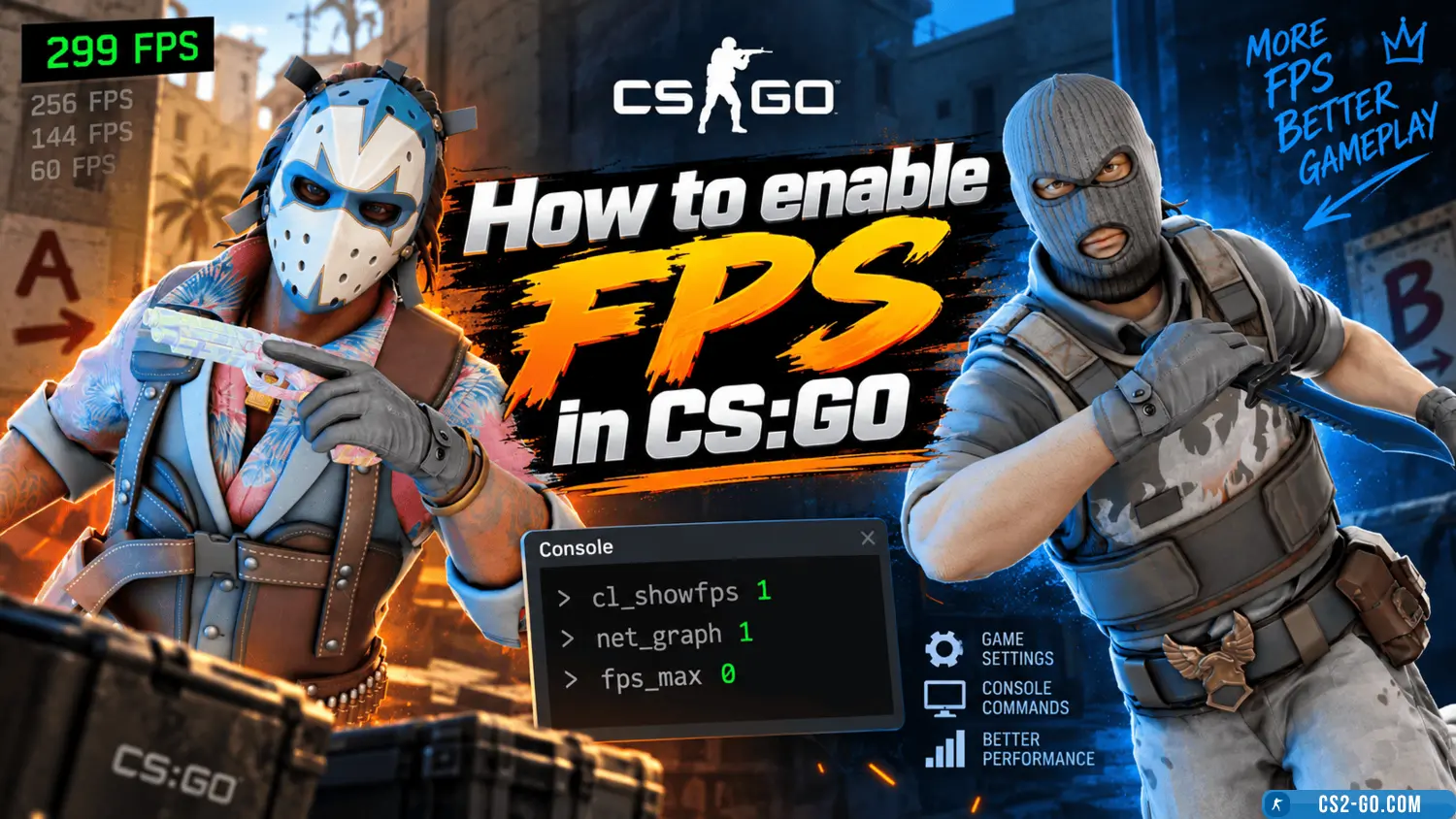
In CS:GO, FPS can be displayed on the screen in several ways: via the console, launch options, or third-party programs. Let's go through all the available methods.
Methods to enable FPS in CS:GO
1. Using the console
✅ Open CS:GO.
✅ Press ~ (tilde) to open the console.
✅ Enter the command:
cl_showfps 1
✅ FPS will now be displayed in the top-left corner of the screen.
Additional:
To hide FPS, enter cl_showfps 0.
2. Using the net_graph command
✅ Open the console (~).
✅ Enter the command:
net_graph 1
✅ Now the bottom of the screen will show FPS along with ping, tick rate, and other network parameters.
Additional settings:
net_graph 0 — disables the panel.
net_graphpos 2 — changes the position.
net_graphproportionalfont 0 — reduces font size.
3. Enabling FPS via launch options
✅ In Steam, open the Library.
✅ Find CS:GO, right-click → Properties.
✅ In the General → Launch Options section, add:
+cl_showfps 1
✅ FPS will now display automatically every time you start the game.
4. Using Steam Overlay
✅ Open Steam → Settings.
✅ Go to the In-Game section.
✅ Find In-Game FPS Counter and choose its position.
✅ FPS will now be displayed over the game.
Conclusion
The most convenient method — cl_showfps 1 or net_graph 1 via console.
+cl_showfps 1 in launch options.
✅ Choose the method that suits you and monitor FPS in CS:GO!