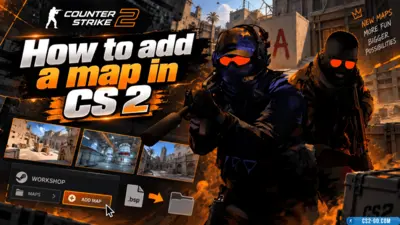
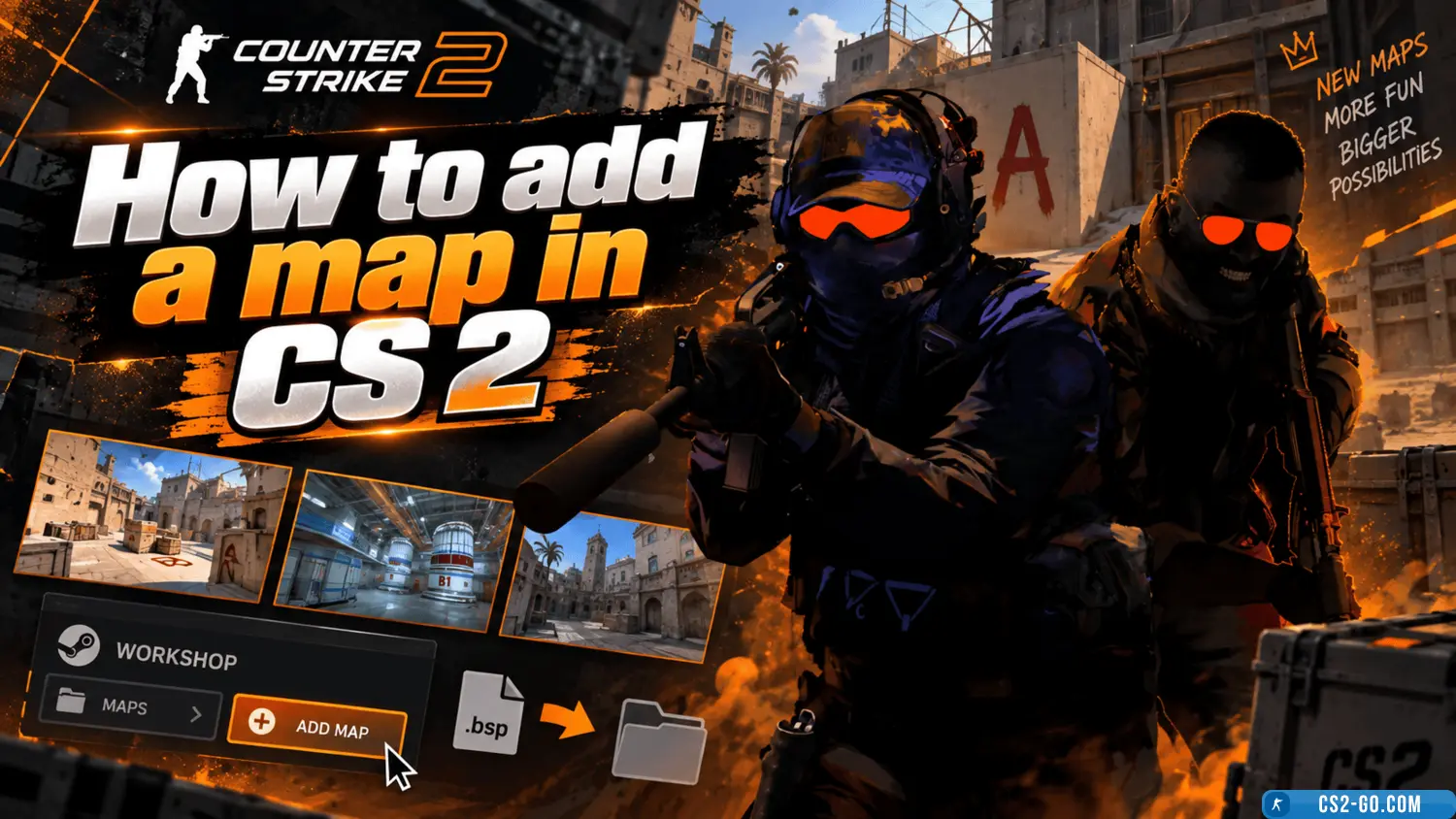
How to add a map in CS 2 (Counter-Strike 2)
  • 👨‍🦱 Добавил: admin 📆 20.01.2025 ⏰ 16:08


To add a map in CS 2 (Counter-Strike 2), follow these steps using the console or manually:

1. Download the map:

  • First, find the desired map on official resources or third-party sites, such as GameBanana or Steam Workshop. Download the map file in .bsp format.

2. Install the map in the game:

  • Move the .bsp map file to your game’s maps folder. The typical path is:

    C:\Program Files (x86)\Steam\steamapps\common\Counter-Strike 2\cs2\maps

    If you are using a different game version, adjust the path accordingly.

3. Open the console:

  • To open the console, make sure it is enabled in the game settings. Go to “Settings” → “Game” → “Enable Developer Console”.

4. Load the map via console:

  • After installing the map, open the console and use the command to load it:

    map map_name

    Where map_name is the name of your downloaded map file without the .bsp extension. For example, if the map is called “de_dust2”, the command will be:

    map de_dust2

5. Alternative ways to load maps:

  • If you want to use the map on a server, upload the map to the server via FTP or the server control panel.

Download CS 2


Категория: Статьи по игре CS 2
    The complete history of CS 1.6 — creators of Counter-Strike
    The complete history of CS 1.6 — creators of Counter-Strike
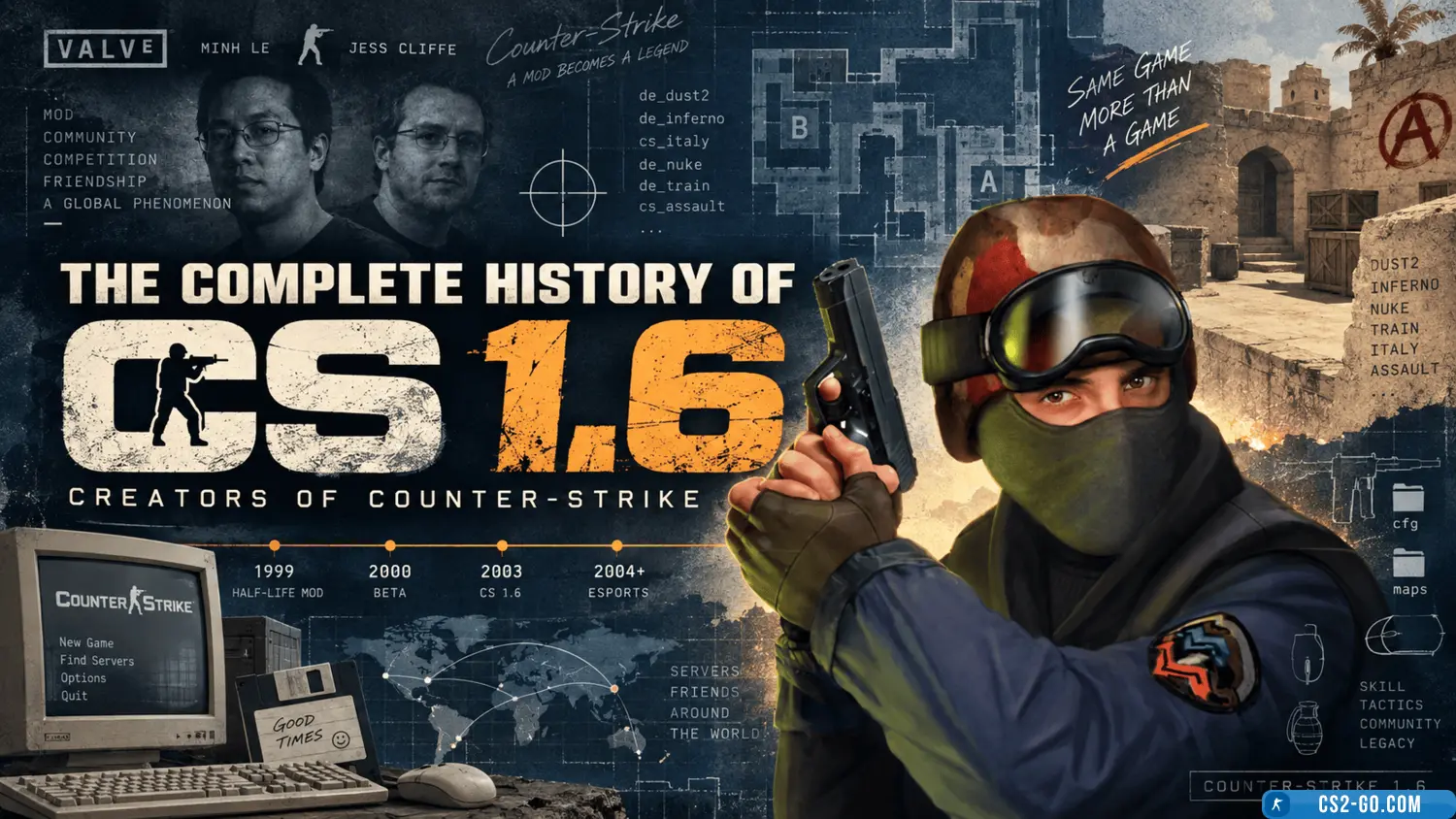
    The history of the creation of “Counter-Strike” and who created it.

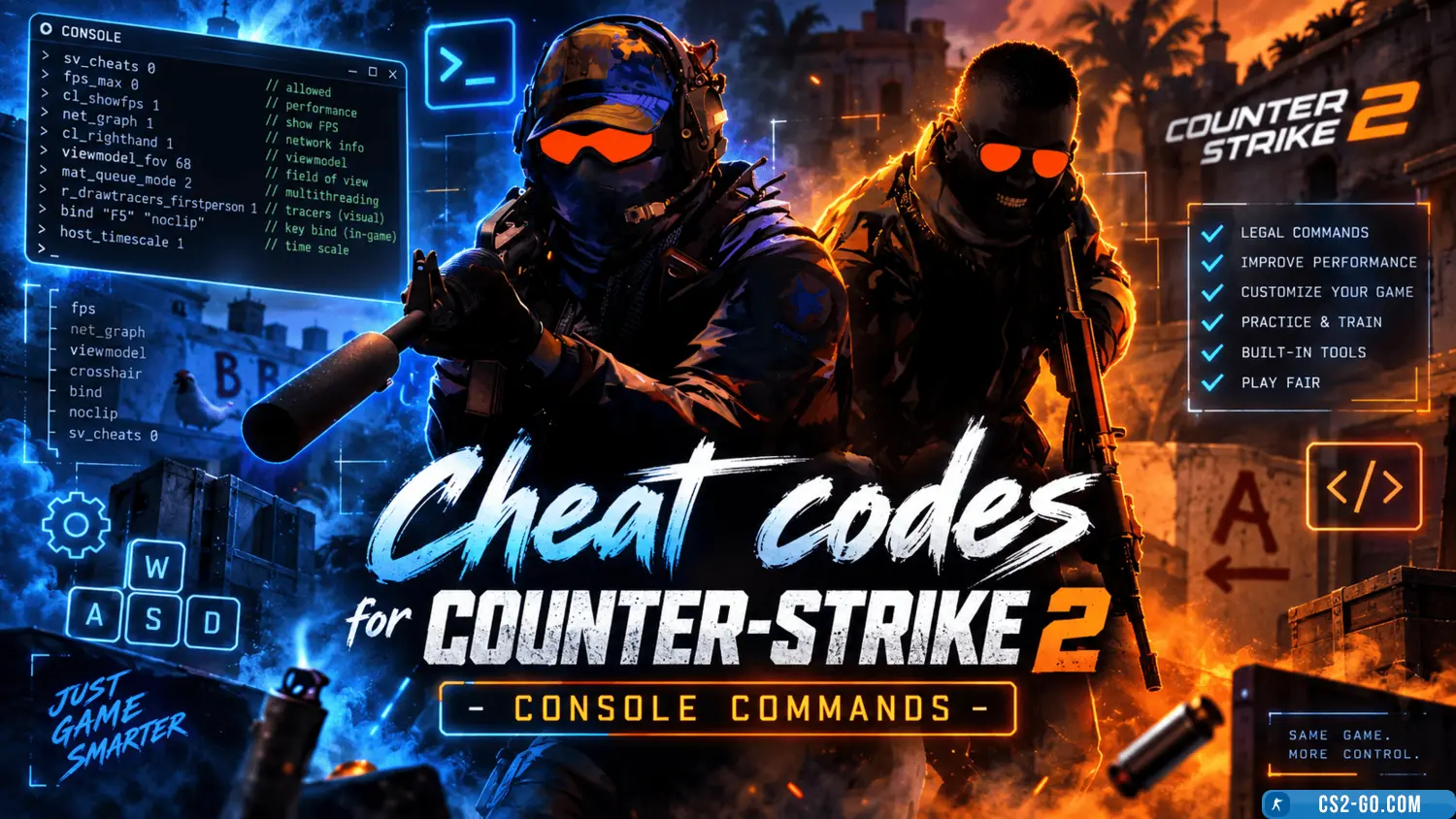
    Cheat codes for Counter-Strike 2 (console commands)
    Cheat codes for Counter-Strike 2 (console commands)
    Counter-Strike 2 offers a wide range of console commands for customizing the game, practicing, and exploring maps. These commands work only on local servers or in training modes. To activate them, enable the "Developer Console" in the game settings and use the "~" key t...

    How to bind keys in CS 2 (CS 2)
    How to bind keys in CS 2 (CS 2)
    In CS 2 (Counter-Strike 2), configuring controls is an important part of game preparation, making gameplay more convenient. Key binds help you perform actions quickly, improving your reaction time and efficiency. This article explains how to properly bind keys in CS 2.

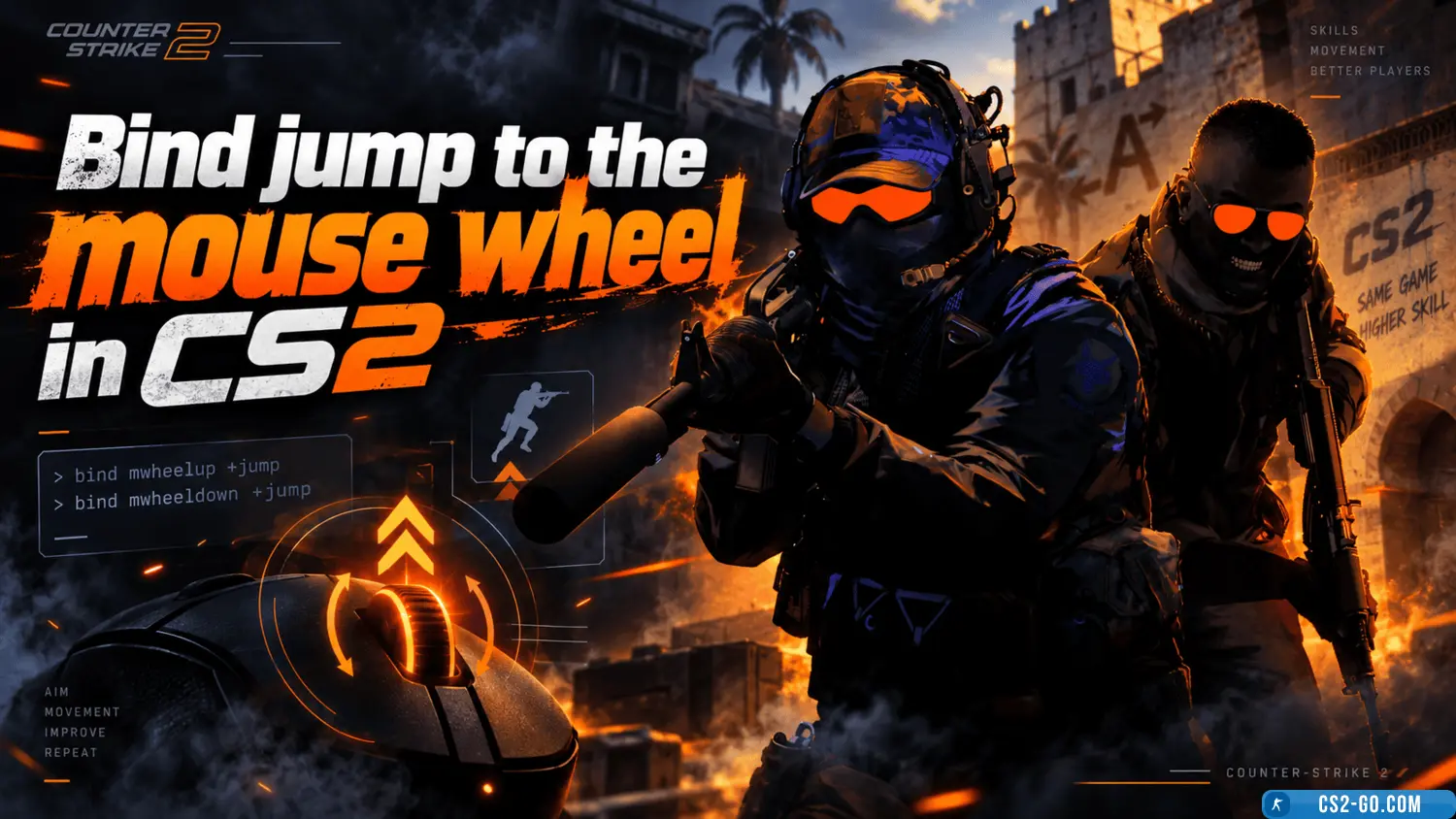
    Bind jump to the mouse wheel in CS2 (CS 2)
    Bind jump to the mouse wheel in CS2 (CS 2)
    Using the mouse wheel for jumping significantly simplifies gameplay in Counter-Strike 2. Here's how to set up this bind.

    How to play Faceit in CS 2 (CS 2)
    How to play Faceit in CS 2 (CS 2)
    To play CS 2 on Faceit, register on the website, link your Steam account, install the anti-cheat, and select competitive mode. Improve your skills and compete against strong opponents.

    How to stretch the screen in CS 2 (CS 2)
    How to stretch the screen in CS 2 (CS 2)
    Screen stretching in *CS 2* (Counter-Strike 2) is a popular setting that improves in-game visibility. This adjustment helps expand the field of view, which can provide an advantage, especially when playing with wider screen proportions. This guide will show you how to s...

    How to bind noclip in CS 2 (CS 2)
    How to bind noclip in CS 2 (CS 2)
    Noclip is a special command in CS 2 (Counter-Strike 2) that allows you to move around the map and pass through walls and objects. To use noclip, you need to bind the corresponding command to one of the keys.