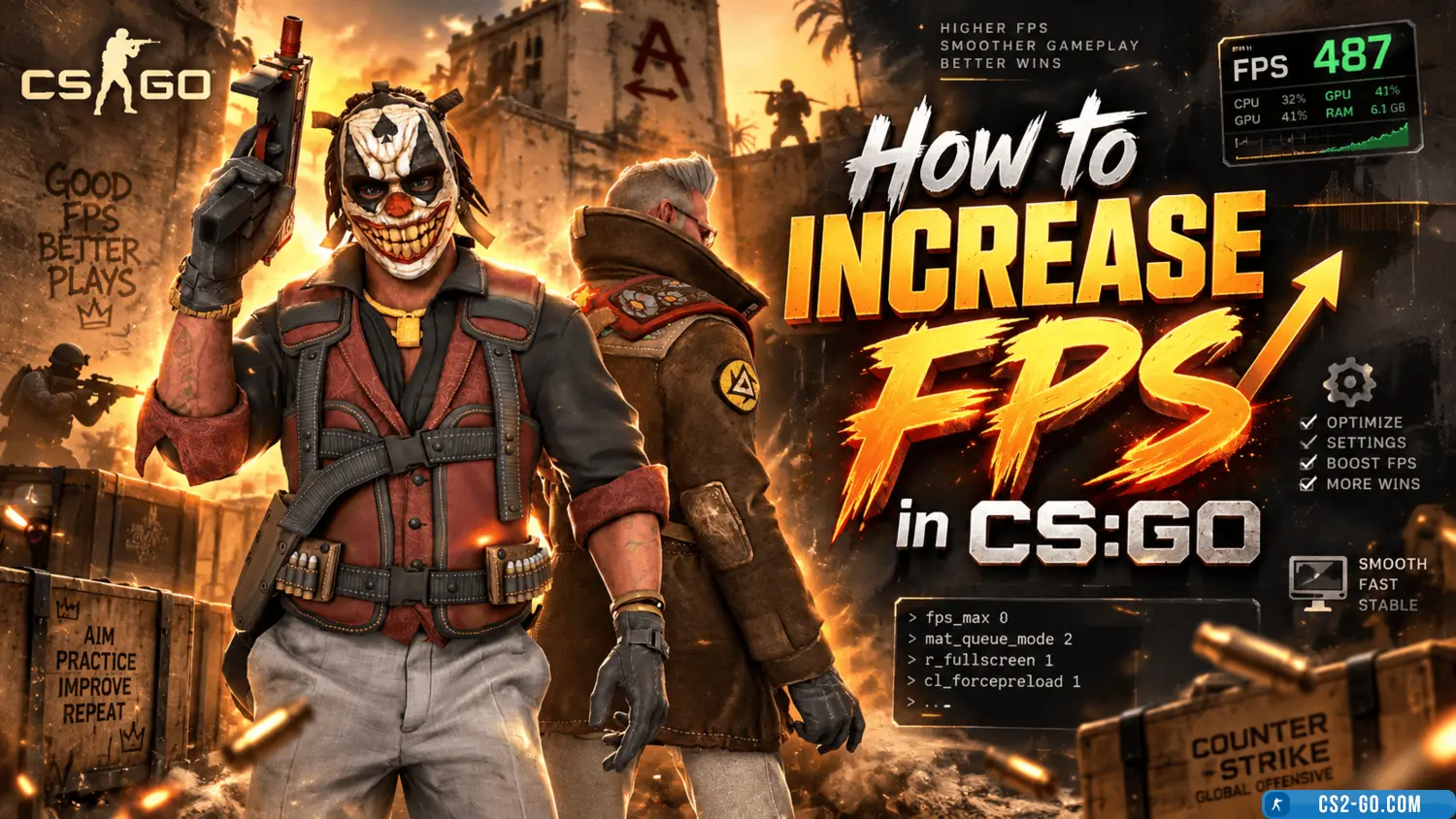
FPS (frames per second) in CS:GO affects gameplay smoothness. Here are the best ways to increase FPS, optimize settings, and configure launch options.
Main ways to increase FPS in CS:GO
1. Optimize graphics settings
✅ Open Settings → Video.
✅ Set the following:
- Resolution: 1280x720 or 1024x768 (if FPS is low).
- Texture quality: low.
- Shadow quality: very low.
- Effect detail: low.
- Model detail: medium or low.
- Anti-aliasing: off.
- Vertical sync (VSync): off.
Additional ways to improve FPS
2. Launch options
✅ In Steam, right-click CS:GO → Properties → General → Launch Options.
✅ Enter:
-novid -high -threads 4 -nojoy -freq 144 -tickrate 128 +fps_max 300
✅ This disables the intro, uses all CPU cores, and increases frame rate.
3. Windows optimization
✅ Close unnecessary background programs (browser, Discord, OBS).
✅ Open Task Manager → Details, find csgo.exe, right-click → Set priority → High.
✅ Enable Maximum Performance Mode in Power Settings.
4. Update drivers
✅ Install the latest GPU drivers from NVIDIA or AMD.
✅ Update DirectX and Microsoft Visual C++.
5. Disk cleanup and defragmentation
✅ In Windows Search, type Disk Cleanup.
✅ Select disk C: and delete temporary files.
✅ Check disk for errors (chkdsk /f in Command Prompt).
6. Use FPS config
✅ In console (~), enter:
fps_max 300 mat_queue_mode 2 cl_forcepreload 1 r_dynamic 0
✅ This removes FPS limits and improves performance.
Conclusion
Main ways to increase FPS — lower graphics settings, launch options, close background programs, and update drivers.
Additionally, you can set process priority, clean the disk, and use an FPS config.
✅ After these steps, FPS in CS:GO will increase significantly.