How to Set Up CS Source v34: Graphics, Controls, and FPS
If you want to achieve maximum performance and comfort in CS Source v34, it’s important to configure it correctly. This guide will help you understand graphics, controls, sound, and network settings to improve FPS and make gameplay more stable.
Graphics Settings
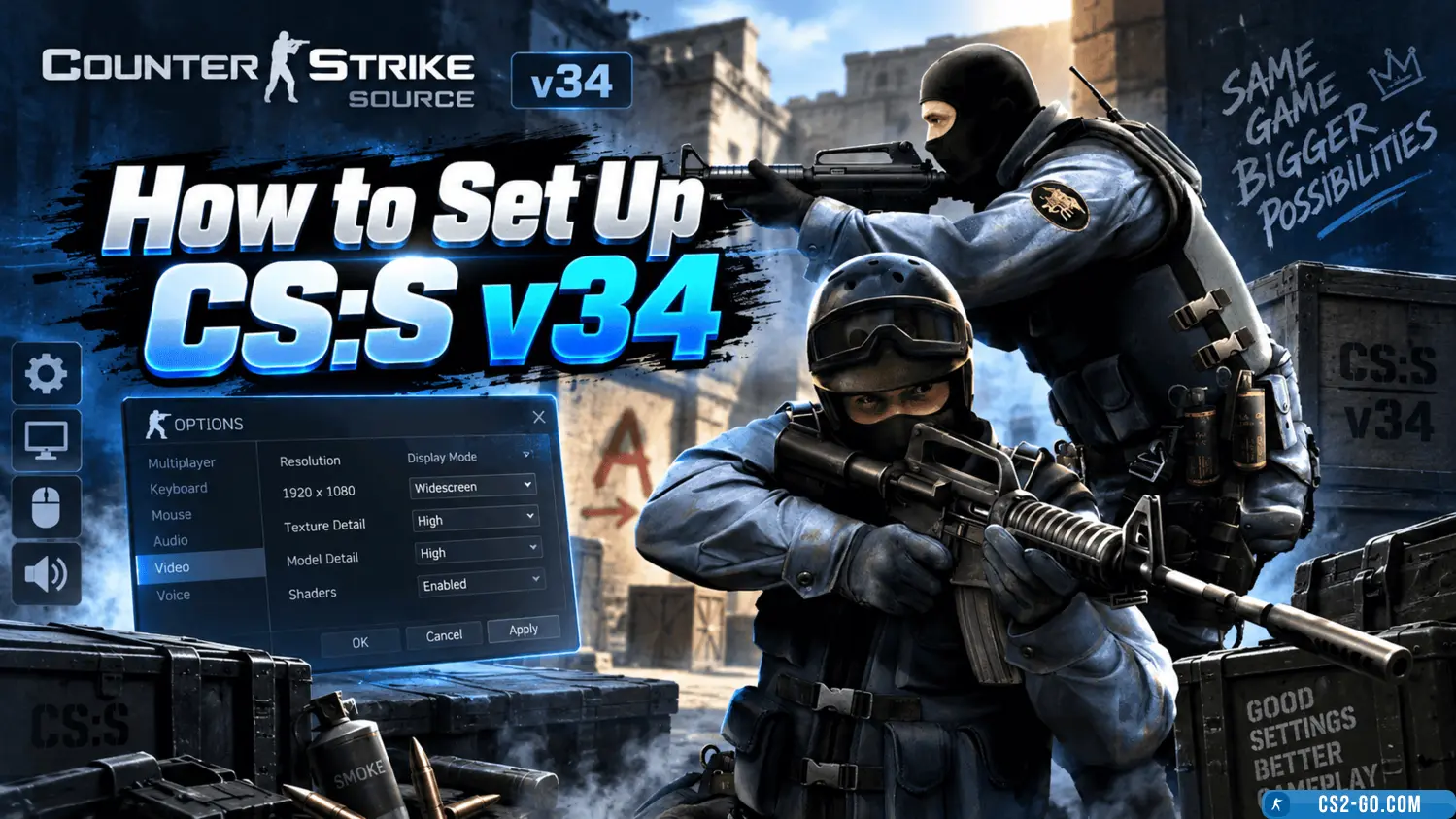
Open the video settings in CS:S and choose the optimal resolution. The best options are 1024x768 or 1280x960 with a 4:3 aspect ratio — this makes player models wider and more visible.
Disable the following options: anti-aliasing, vertical sync, shadow detail, and effects. These settings put a heavy load on the GPU and reduce FPS. Lower graphics settings result in more stable performance.
Controls and Keybinds
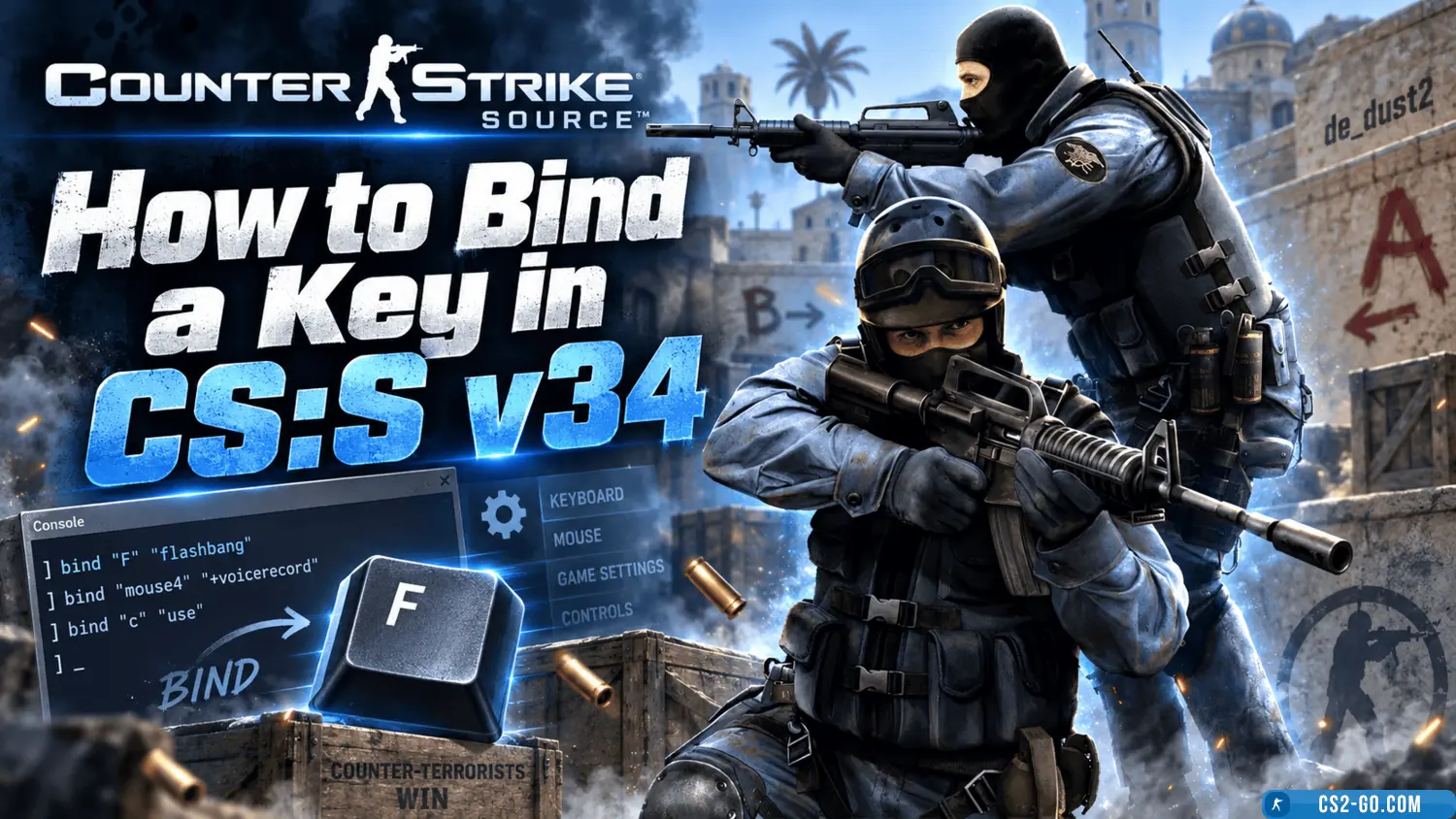
Remap keys to suit yourself: movement, jump, aiming, weapon switching. It is recommended to use keybinds for quick purchases: bind "F1" "buy ak47; buy vesthelm".
Add binds for switching hands: bind "M" "toggle cl_righthand 0 1", and chat commands. You can also bind voice chat or quick messages to the team.
Sound Settings
Turn off music and increase footstep volume. If you have good headphones, enable surround sound. Useful command: snd_mixahead 0.05 — improves footstep perception.
Console Commands and FPS
Enable the developer console (in keyboard settings). Enter the following commands in the console:
fps_max 300 — frame limitcl_cmdrate 100, cl_updaterate 100, rate 100000 — stable pingnet_graph 1 — display FPS and pingcl_interp 0 and cl_interp_ratio 1 — reduce lag
All commands can be saved in the config.cfg file located in cstrike/cfg. Set the file to "read-only" so the game doesn’t reset the settings.
Windows Optimization
Close background programs such as browsers, Discord, and antivirus. Run CS Source as an administrator. You can also enable compatibility mode with Windows 7 or XP if launch errors occur.
Conclusion
Properly configured CS Source v34 ensures stable gameplay, high FPS, and comfort. Use this guide to improve gameplay, reduce lag, and play at your maximum potential.