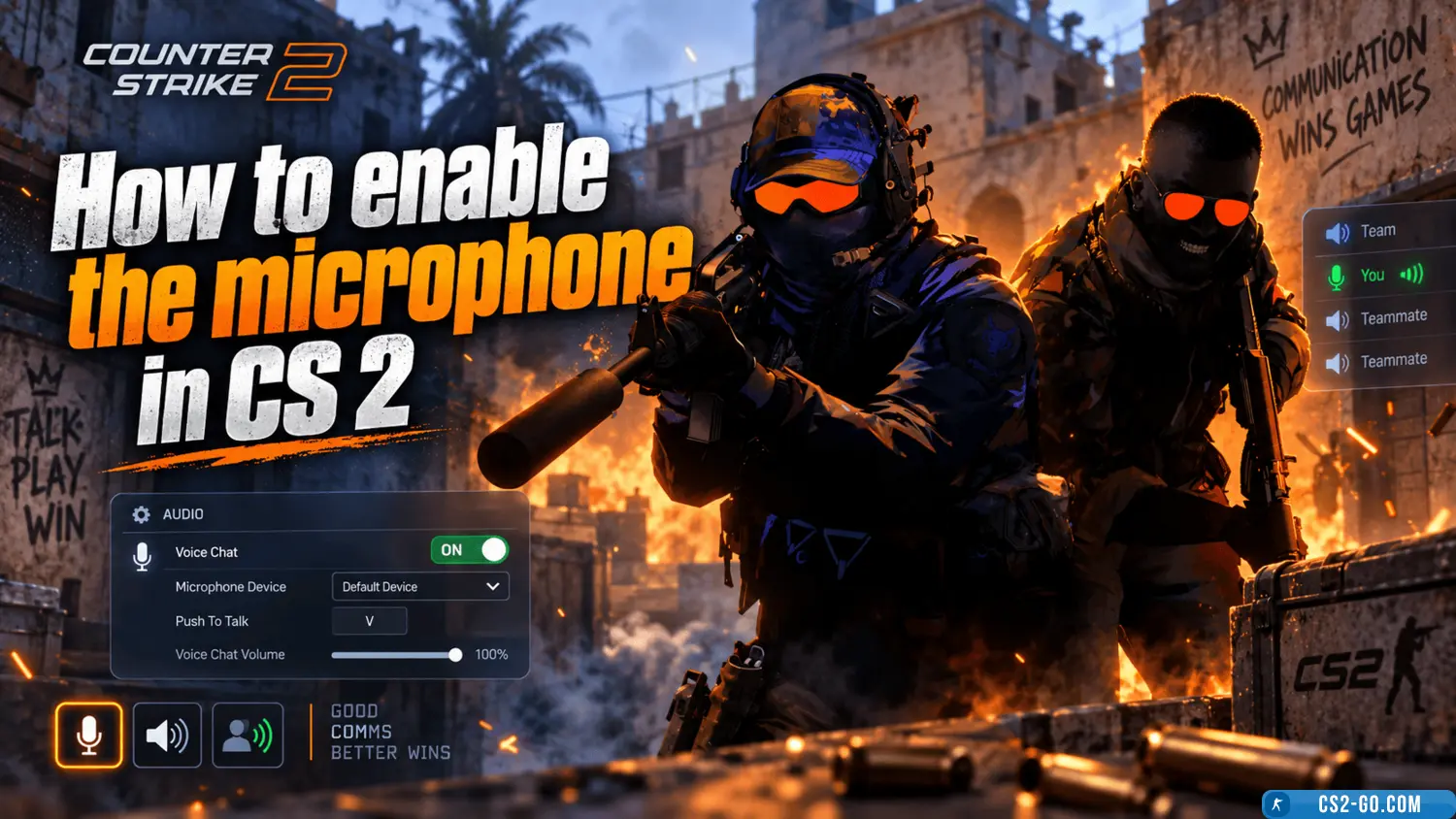
How to enable the microphone in CS 2 (Counter-Strike 2) – Voice Chat
  • 👨‍🦱 Добавил: admin 📆 20.01.2025 ⏰ 16:19


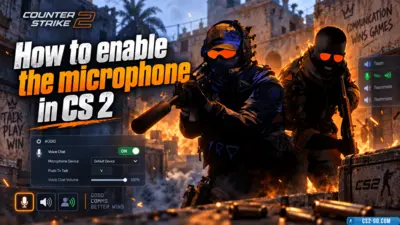
To enable the microphone in CS 2 (Counter-Strike 2), follow these simple steps:

1. Check sound settings:

  • Go to “Settings” → “Sound” → “Microphone” and make sure the input device (microphone) is selected correctly.

2. Enable the microphone via console:

  • Open the console (if it’s not enabled, go to “Settings” → “Game” → “Enable Developer Console”).
  • Enter the command:

    voice_enable 1

    This will activate your microphone for use in the game.

3. Adjust microphone volume:

  • In the menu “Settings” → “Sound” → “Microphone”, set the desired microphone volume so it can be heard clearly.

4. Using the microphone in-game:

  • To speak in the game, hold the microphone activation key, usually "V" by default (can be changed in control settings).

5. Troubleshooting:

  • If the microphone doesn’t work, make sure it is properly configured and selected as the input device in your operating system.
  • Enable the microphone in the OS settings and make sure other programs are not blocking it.

Download CS 2


Категория: Статьи по игре CS 2
    How to enable a demo in CS 2 (Counter-Strike 2) – Watching a Demo
    How to enable a demo in CS 2 (Counter-Strike 2) – Watching a Demo
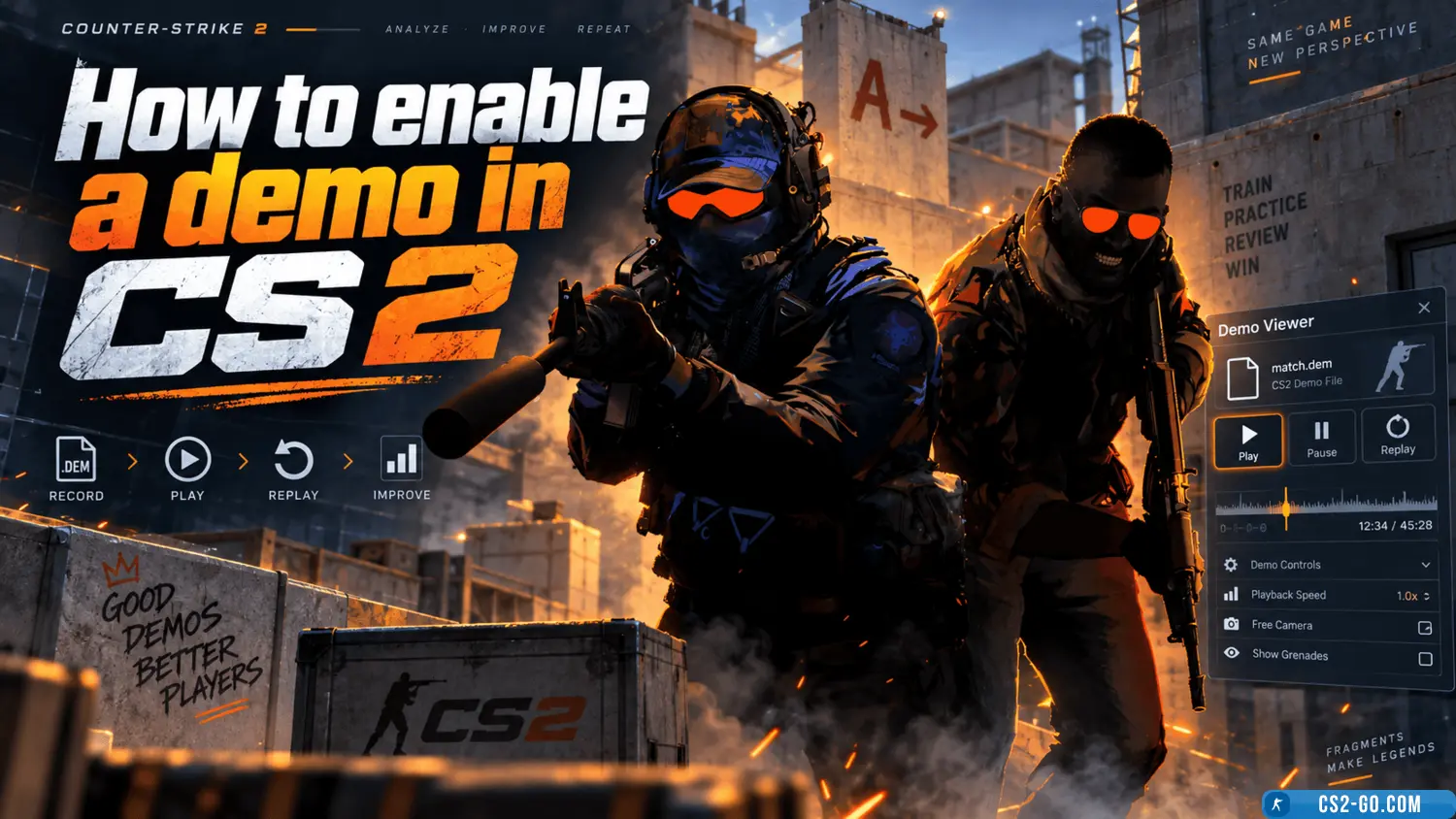
    Learn how to enable and watch a demo in CS 2 using the playdemo command. Use additional commands to control playback and analyze matches.

    How to set up a warm-up in CS 2 (Counter-Strike 2)
    How to set up a warm-up in CS 2 (Counter-Strike 2)
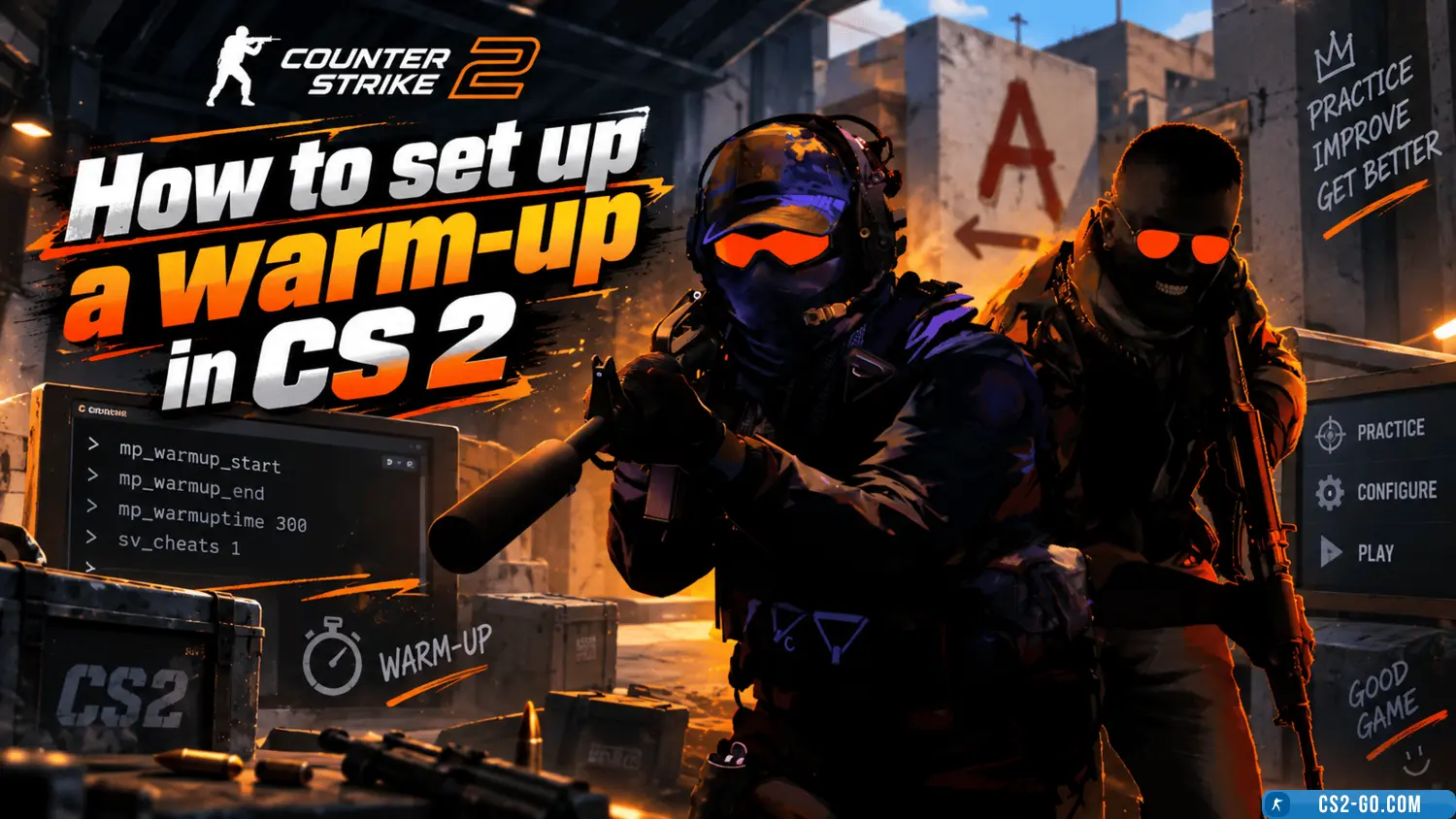
    Learn how to organize a warm-up in CS 2 using console commands. Add bots, configure their behavior, and use maps to practice your aim.

    The complete history of CS 1.6 — creators of Counter-Strike

    The complete history of CS 1.6 — creators of Counter-Strike
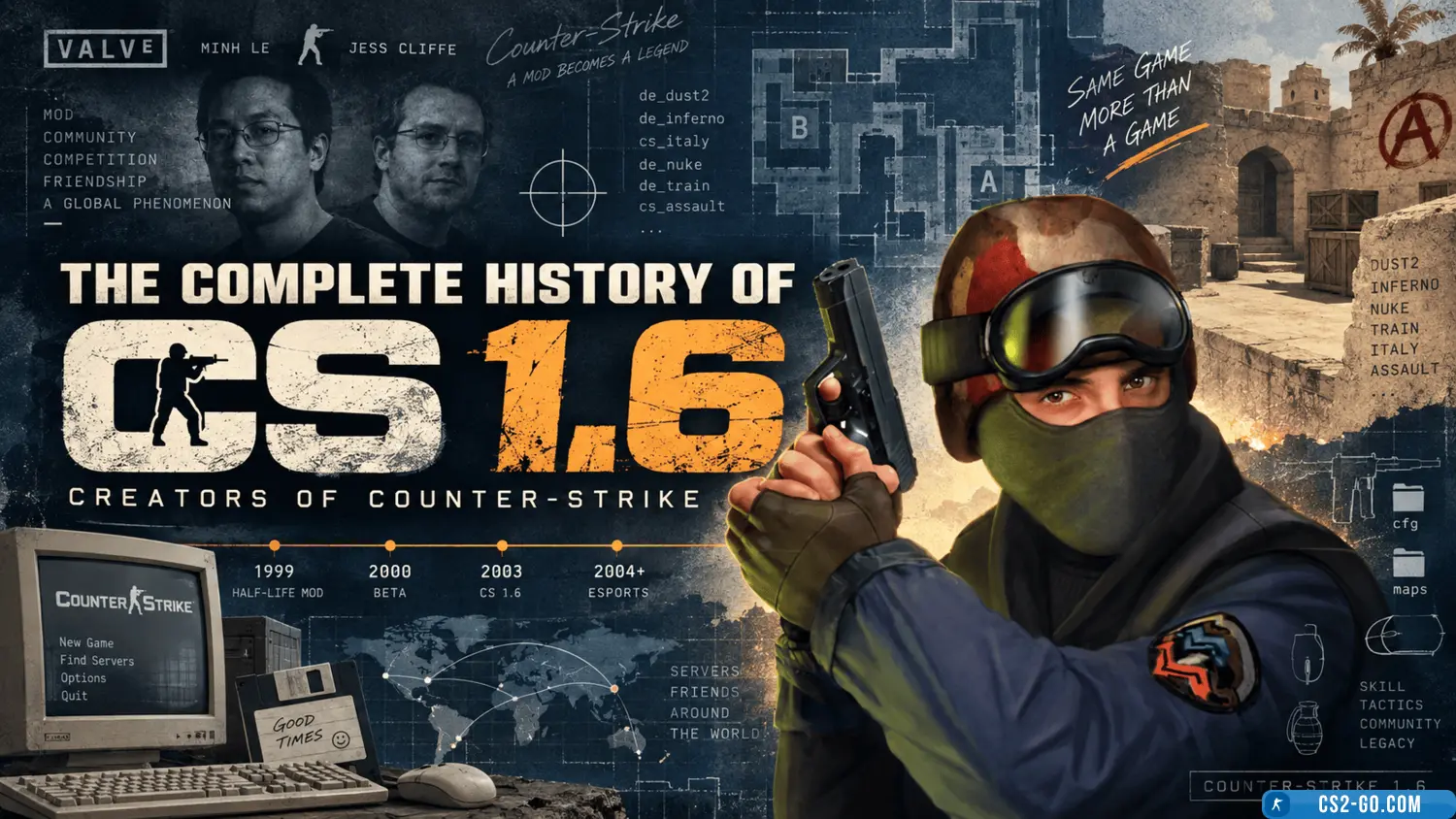
    The history of the creation of “Counter-Strike” and who created it.

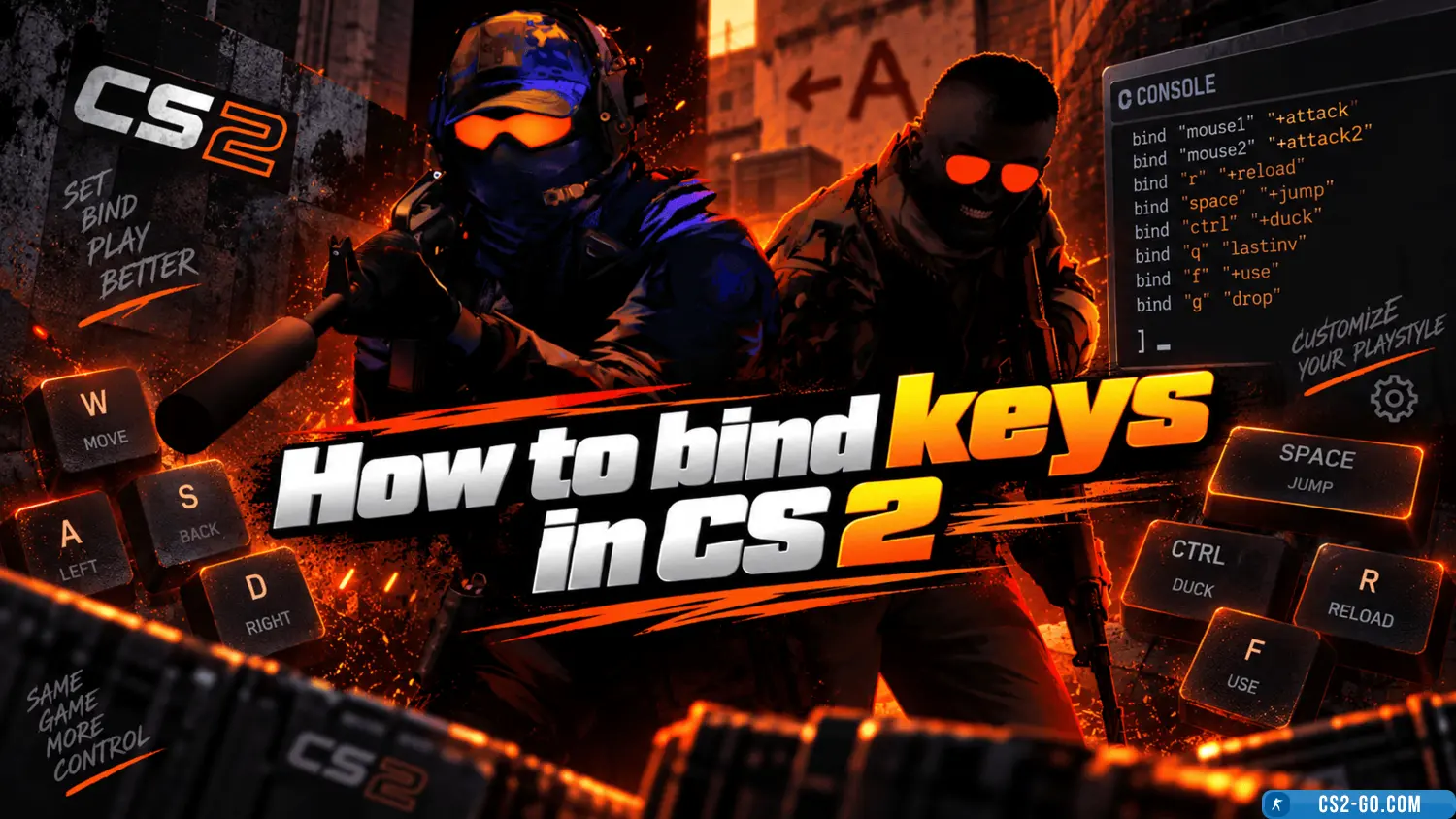
    How to bind keys in CS 2 (CS 2)
    How to bind keys in CS 2 (CS 2)
    In CS 2 (Counter-Strike 2), configuring controls is an important part of game preparation, making gameplay more convenient. Key binds help you perform actions quickly, improving your reaction time and efficiency. This article explains how to properly bind keys in CS 2.

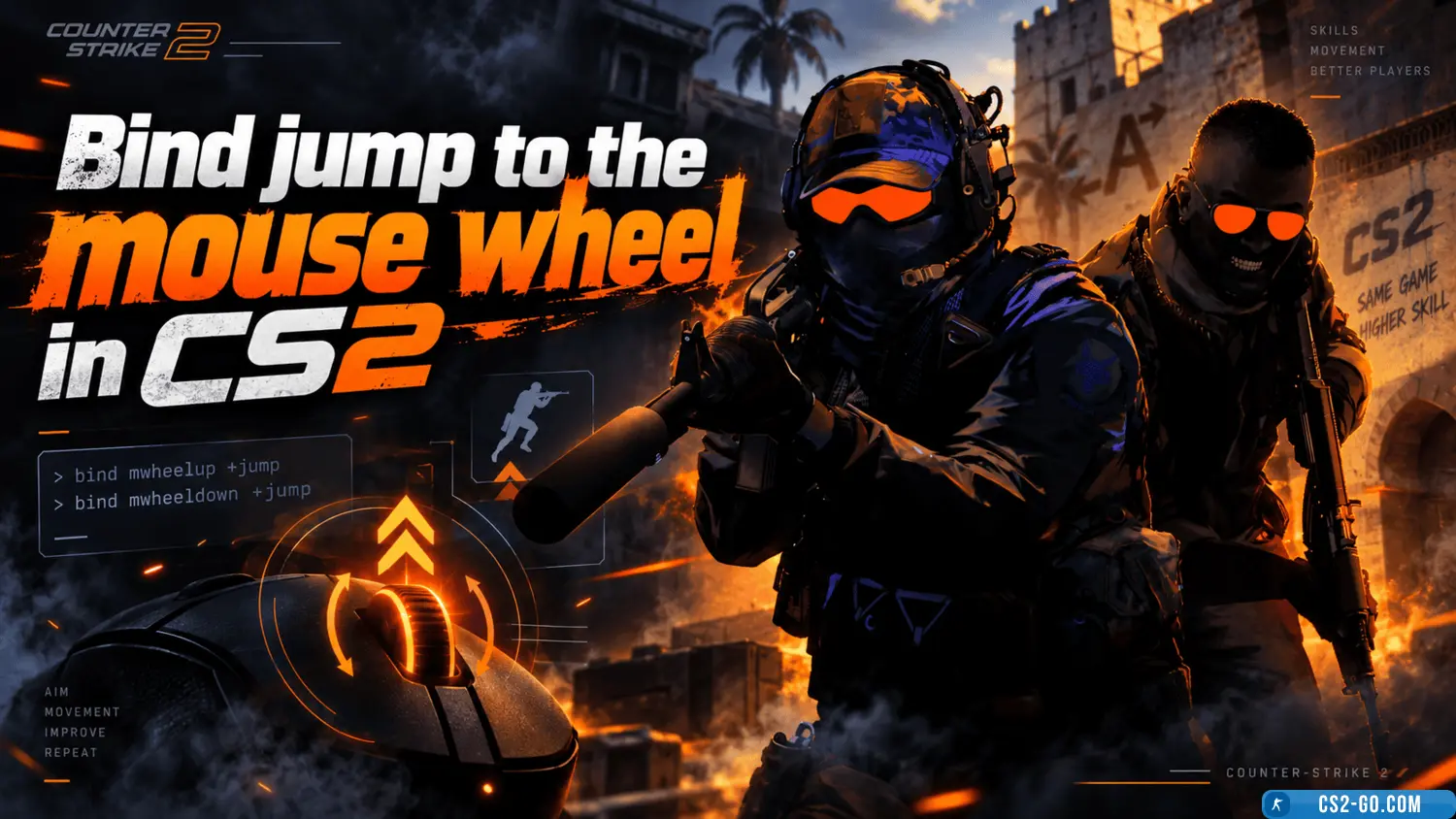
    Bind jump to the mouse wheel in CS2 (CS 2)
    Bind jump to the mouse wheel in CS2 (CS 2)
    Using the mouse wheel for jumping significantly simplifies gameplay in Counter-Strike 2. Here's how to set up this bind.

    How to play Faceit in CS 2 (CS 2)
    How to play Faceit in CS 2 (CS 2)
    To play CS 2 on Faceit, register on the website, link your Steam account, install the anti-cheat, and select competitive mode. Improve your skills and compete against strong opponents.

    How to stretch the screen in CS 2 (CS 2)
    How to stretch the screen in CS 2 (CS 2)
    Screen stretching in *CS 2* (Counter-Strike 2) is a popular setting that improves in-game visibility. This adjustment helps expand the field of view, which can provide an advantage, especially when playing with wider screen proportions. This guide will show you how to s...